Viewing and Approving Employee Time-Off Requests and Balances on Rippling
Last updated: November 13, 2025
As a manager or admin, you can review your employees’ available vacation or sick time before approving or rejecting their time-off requests in Rippling.
Viewing Employee Time-Off Balances
To view an employee’s available time-off balance:
From the main sidebar, select Time.
Click Time Off.
Select the Balances tab.
Search for the employee or filter by leave type.
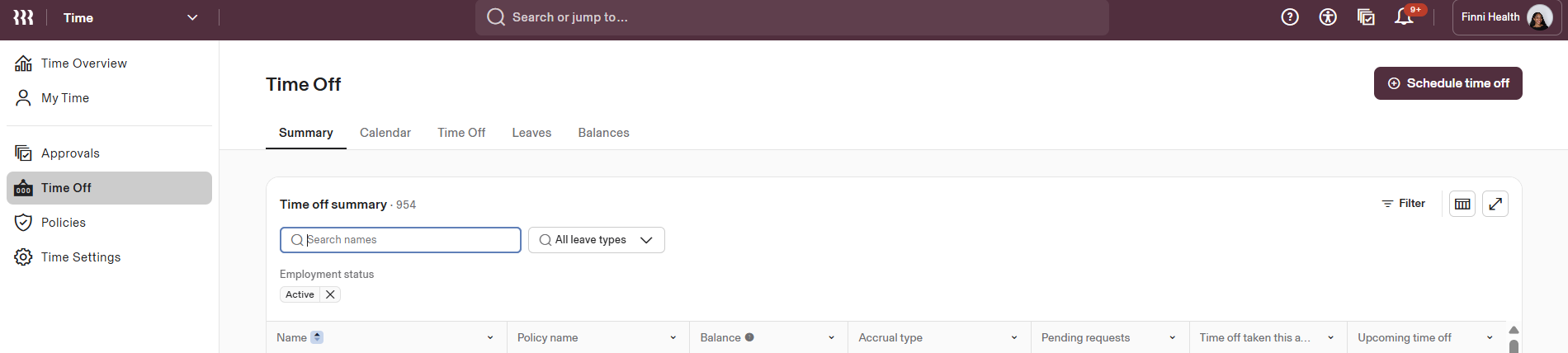
You can then review each policy the employee is enrolled in and their current balance.
If you are reviewing a specific request, open it from your browser (see List View instructions below). Click the > arrow icon to expand the details, then hover over the Attributes section. You’ll see the employee’s available balance, the requested dates and duration, and the reason for the leave.
Note: Only managers or admins with time-off permissions can view these balances for their direct reports.
Approving or Rejecting Time-Off Requests
You can manage time-off requests using your web browser or the Rippling mobile app.
Web Browser – List View (Recommended)
From the sidebar, go to Time > Approvals.
Select the Needs review tab, then the Time Off sub-tab.
To approve immediately, click the ✅ icon. To reject, click the ❌ icon.
To view details before acting, click the > arrow icon to expand the request.
Web Browser – Calendar View
From the sidebar, go to Time > Time Off.
Select the Calendar tab.
Click the expand arrow on a pending request, then choose Approve request or Reject request.
You can also use Bulk Approve to manage multiple requests at once.
Rippling Mobile App
On the dashboard, select HR > Time Off.
Tap the Approvals tab, then My team.
Select a request to view details.
Choose Approve or Reject.
Editing or Canceling Approved Requests
Admins can edit or cancel approved time-off requests if needed. Be aware that changes to past dates may require payroll adjustments.
To edit an approved request:
Go to Time > Approvals > All requests > Time Off.
Click the request, then select View in Time Off.
Click Edit under the Request Details tab.
To cancel an approved request:
Go to Time > Approvals > All requests > Time Off.
Open the request details.
Click Cancel request and confirm.
Important Notes for Managers
You cannot edit a pending employee request. Decline it and have the employee resubmit with the correct details.
Leave hours are deducted from balances when the leave begins, not at approval time.
Admins can override policy restrictions (e.g., insufficient balance) if appropriate.
If a manager changes, pending requests must be canceled and resubmitted to route to the new approver.
Once a request is rejected, it cannot be reinstated. The employee must submit a new one.
For any additional information or assistance, please contact the HR Team at hr@finnihealth.com.