Setting up 2-Step Verification (2SV) for your Google Workspace Account
Last updated: January 7, 2026
Two-Step Verification (2SV), also known as Multi-Factor Authentication (MFA), adds an extra layer of security to your Google Workspace account. By requiring a second form of identification (like a code on your phone or an authentication), we ensure that even if someone steals your password, they cannot access your account or sensitive data.
Step 1: Access Your Google Account Settings
Open the Gmail app on your iPad(identical step to any device)
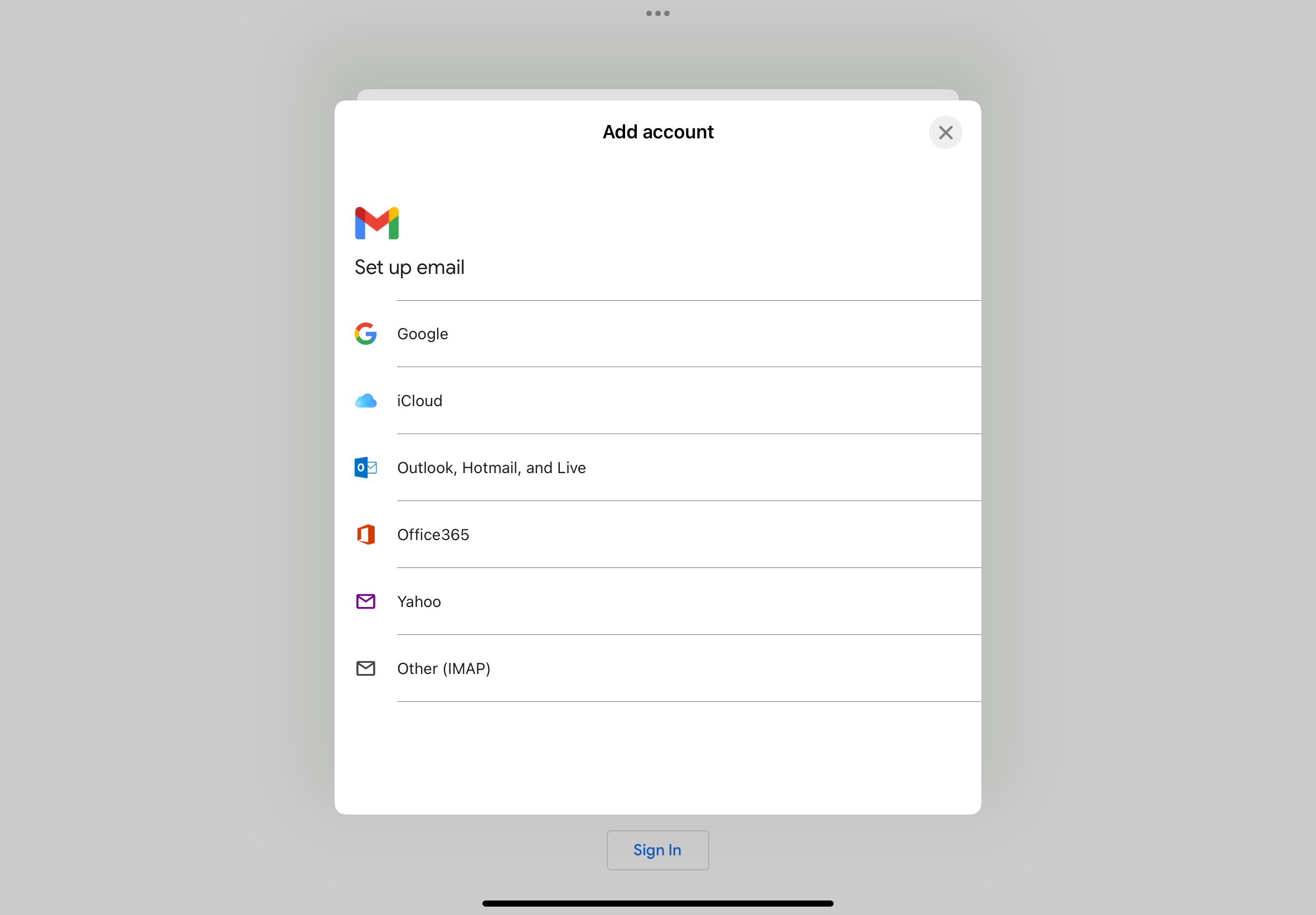
Choose Google and provide your email and password to sign in
Step 2: Navigate to Manage your Account
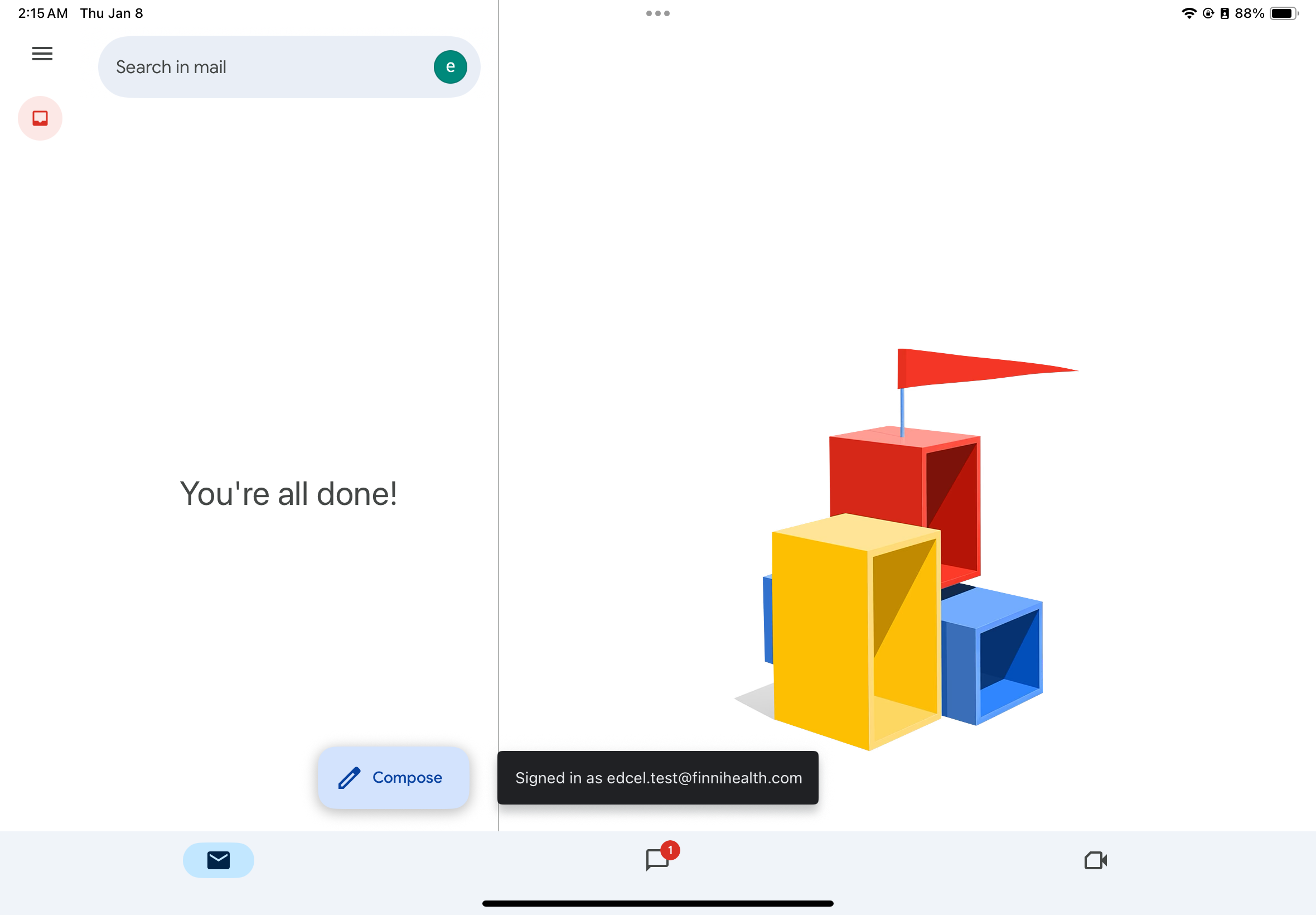
Tap your Profile Icon (the circle with your initial or photo) in the top-right corner of the screen.
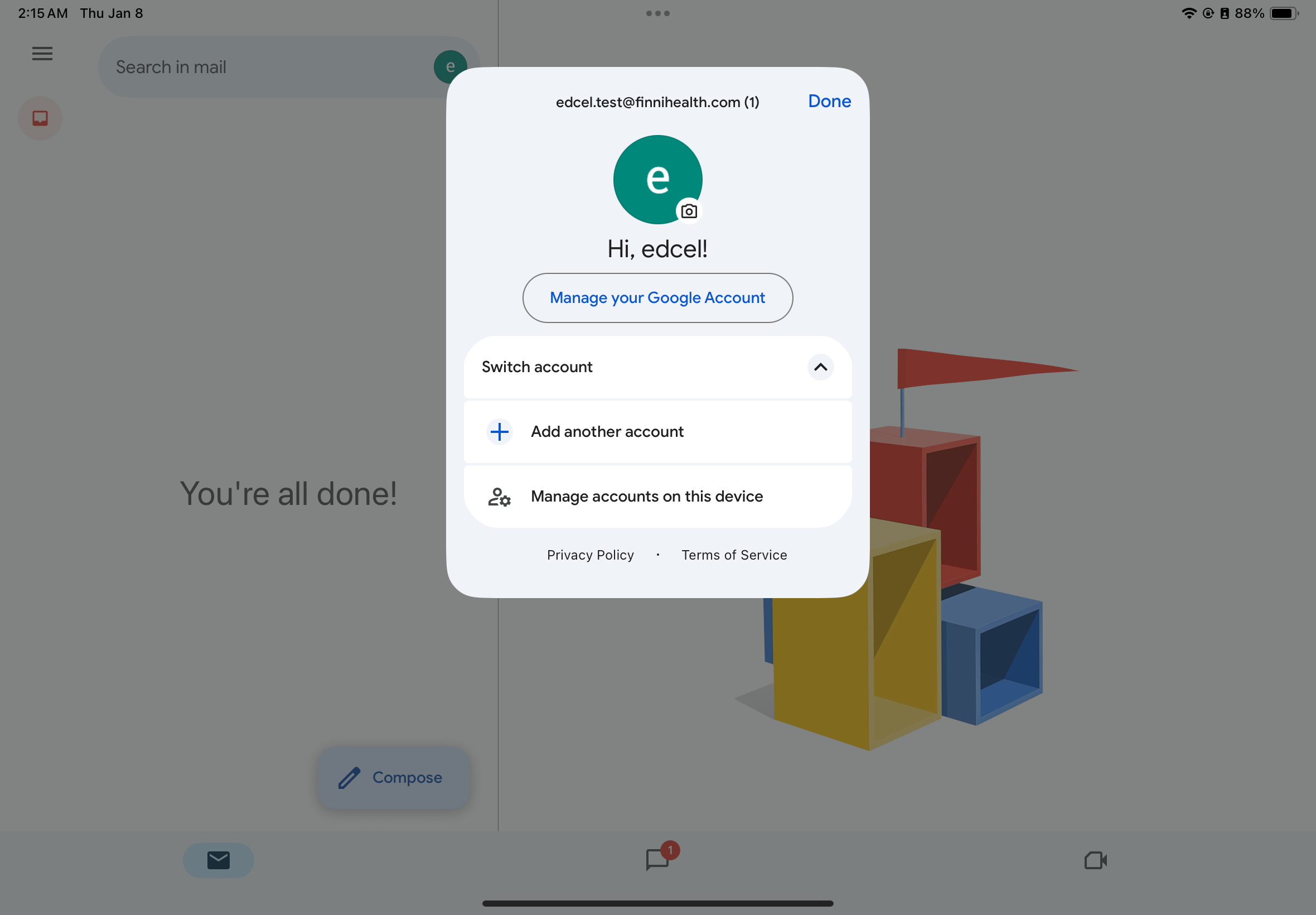
In the pop-up menu, tap the blue Manage your Google Account button
Step 3: Navigate to Security Settings
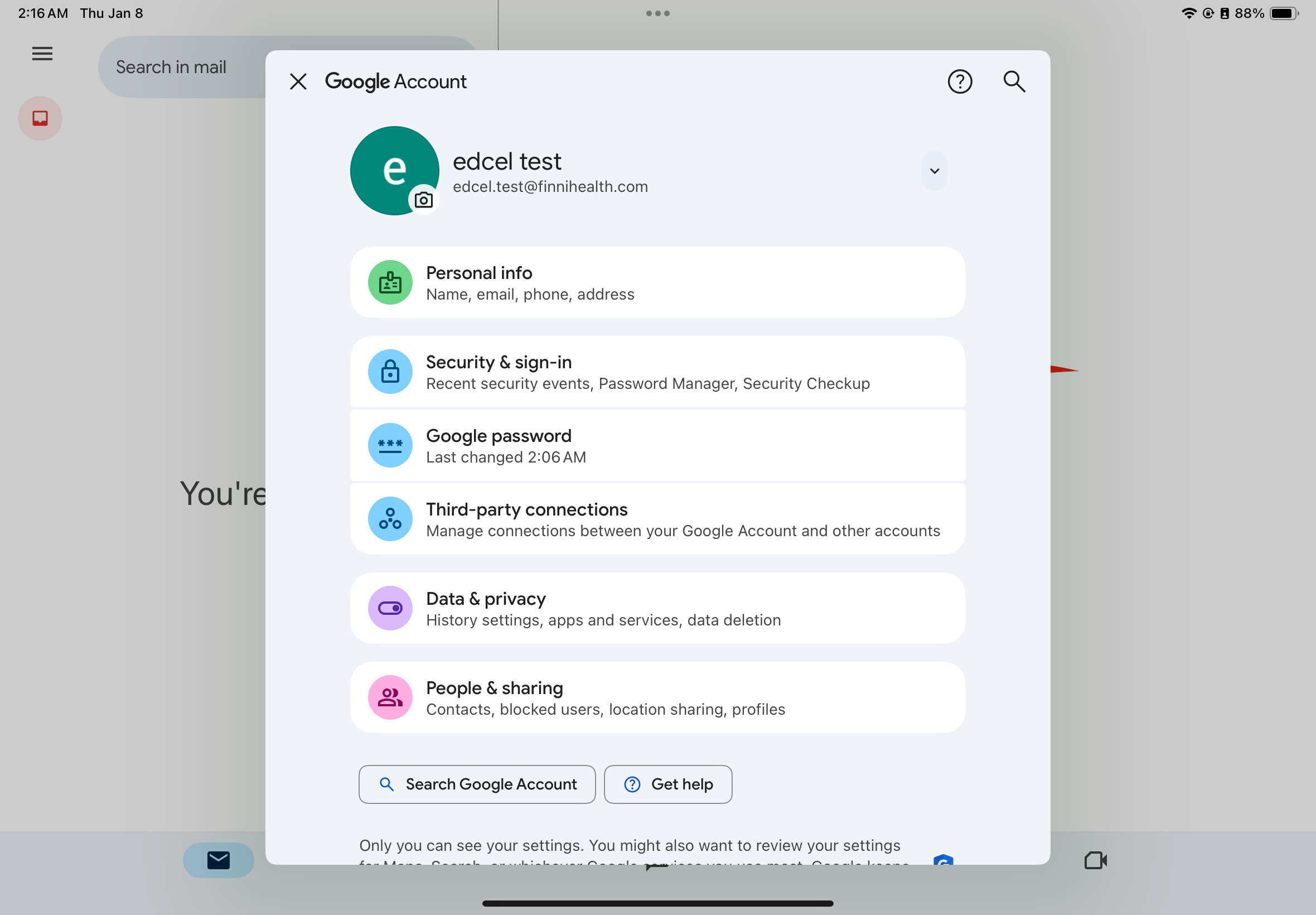
Once the "Google Account" screen opens, locate the menu list.
Tap on Security & sign-in (indicated by the blue locked icon).
Scroll down to the section titled "How you sign in to Google".
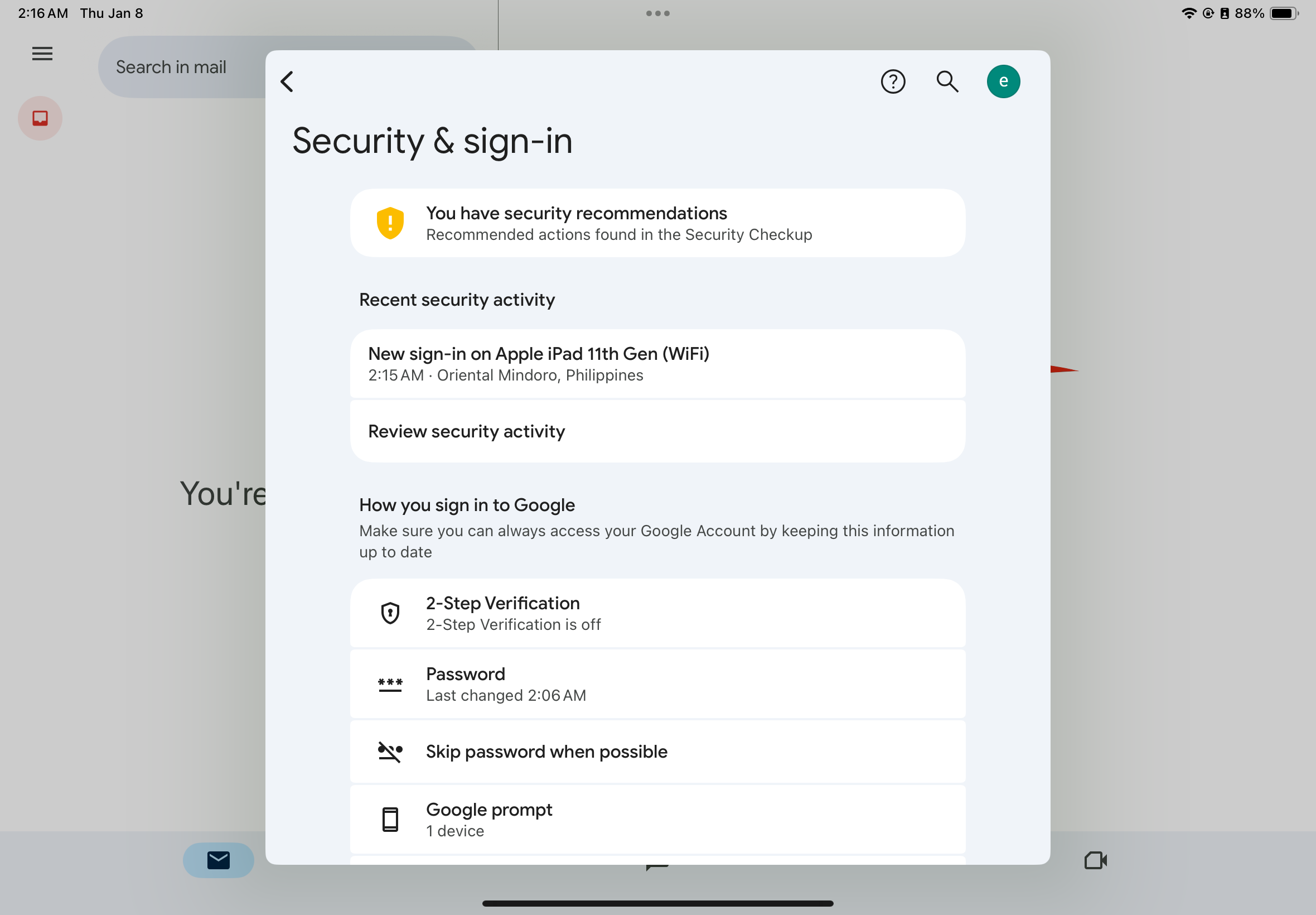
Tap on 2-Step Verification. You will see it currently says "2-Step Verification is off.
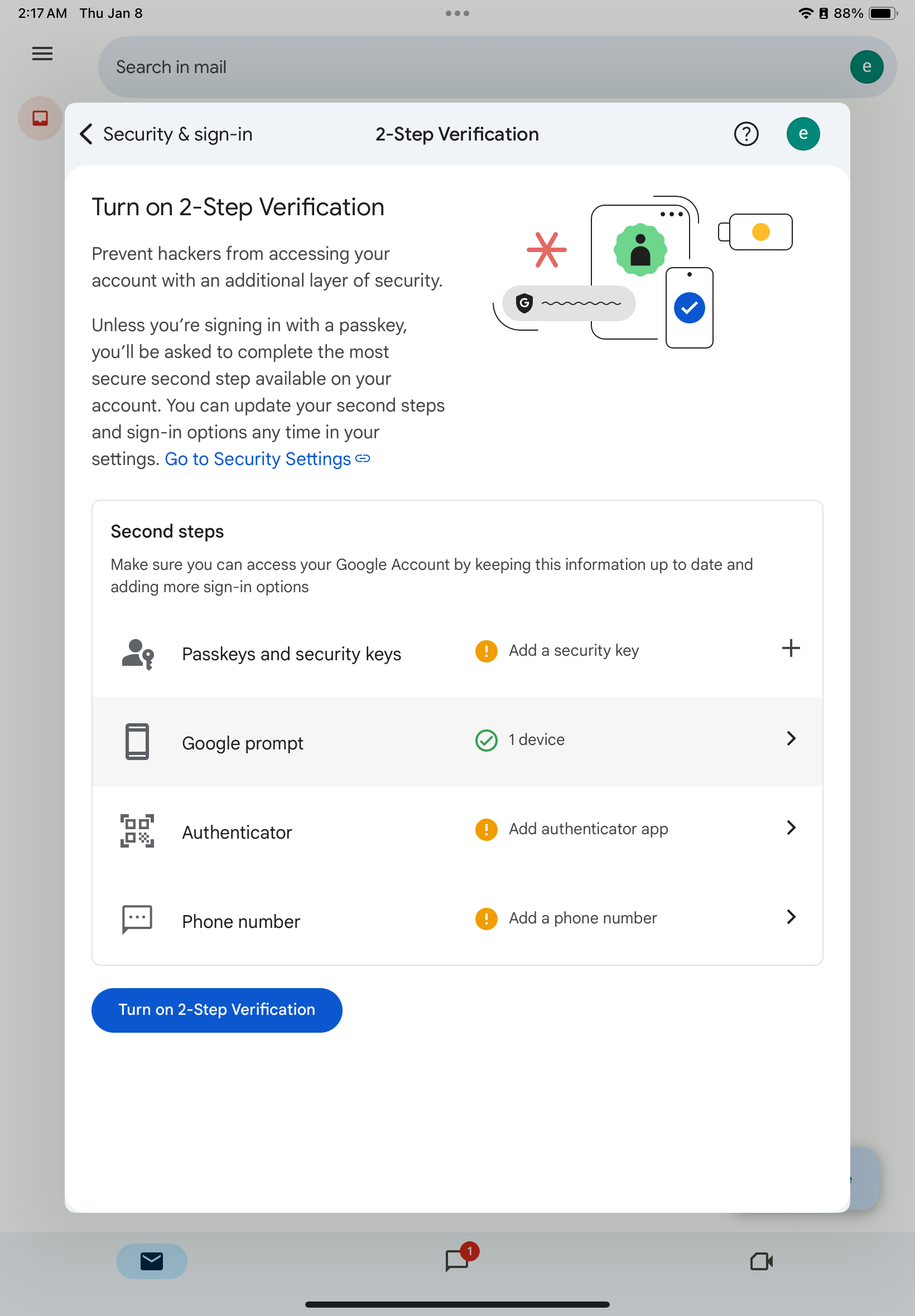
Step 4: Add a Backup Phone Number
This is your first safety net if you don't have your iPad.
Add your phone number, and on the Confirm your phone number screen, verify that your mobile number is correct and tap Save.
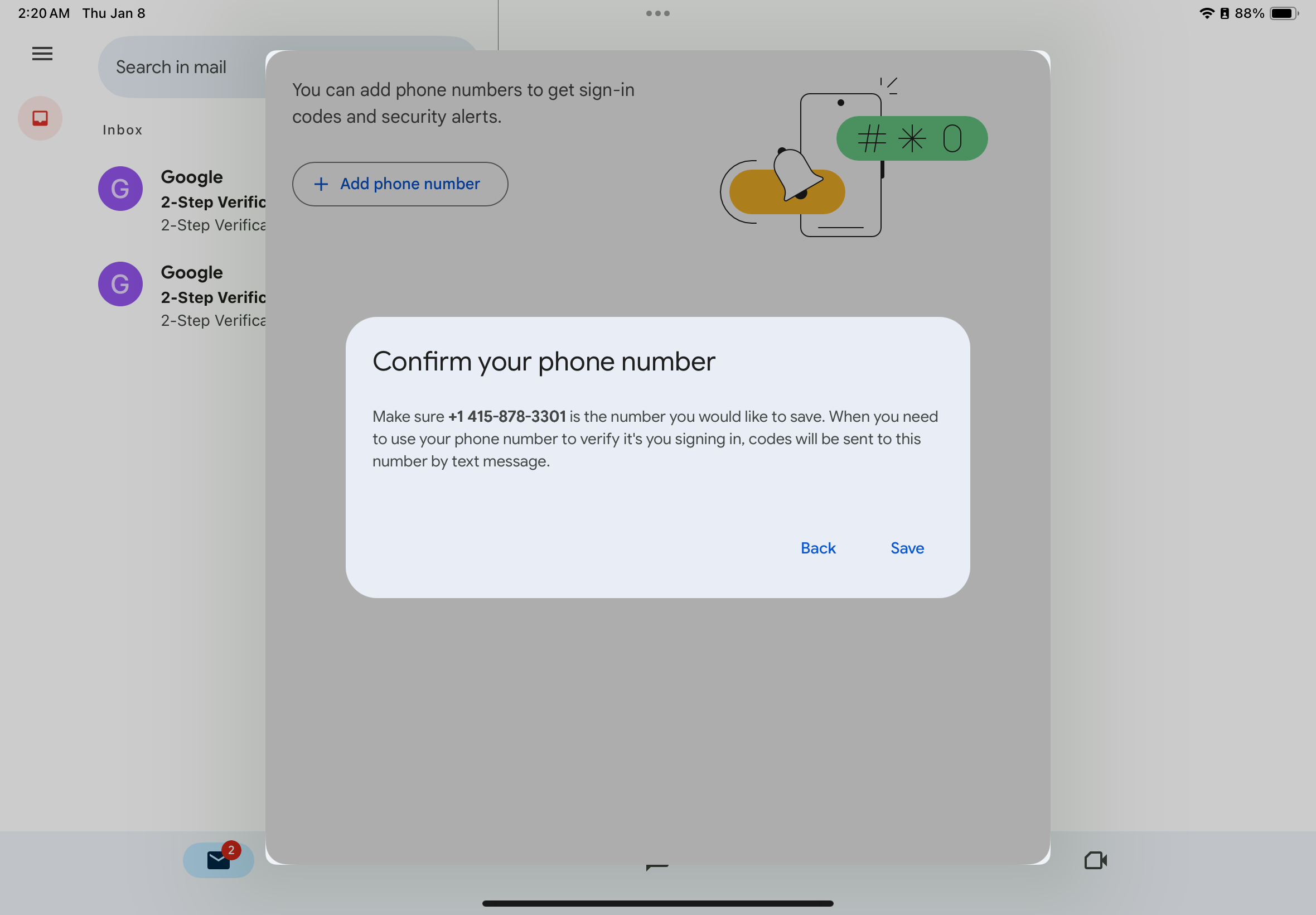
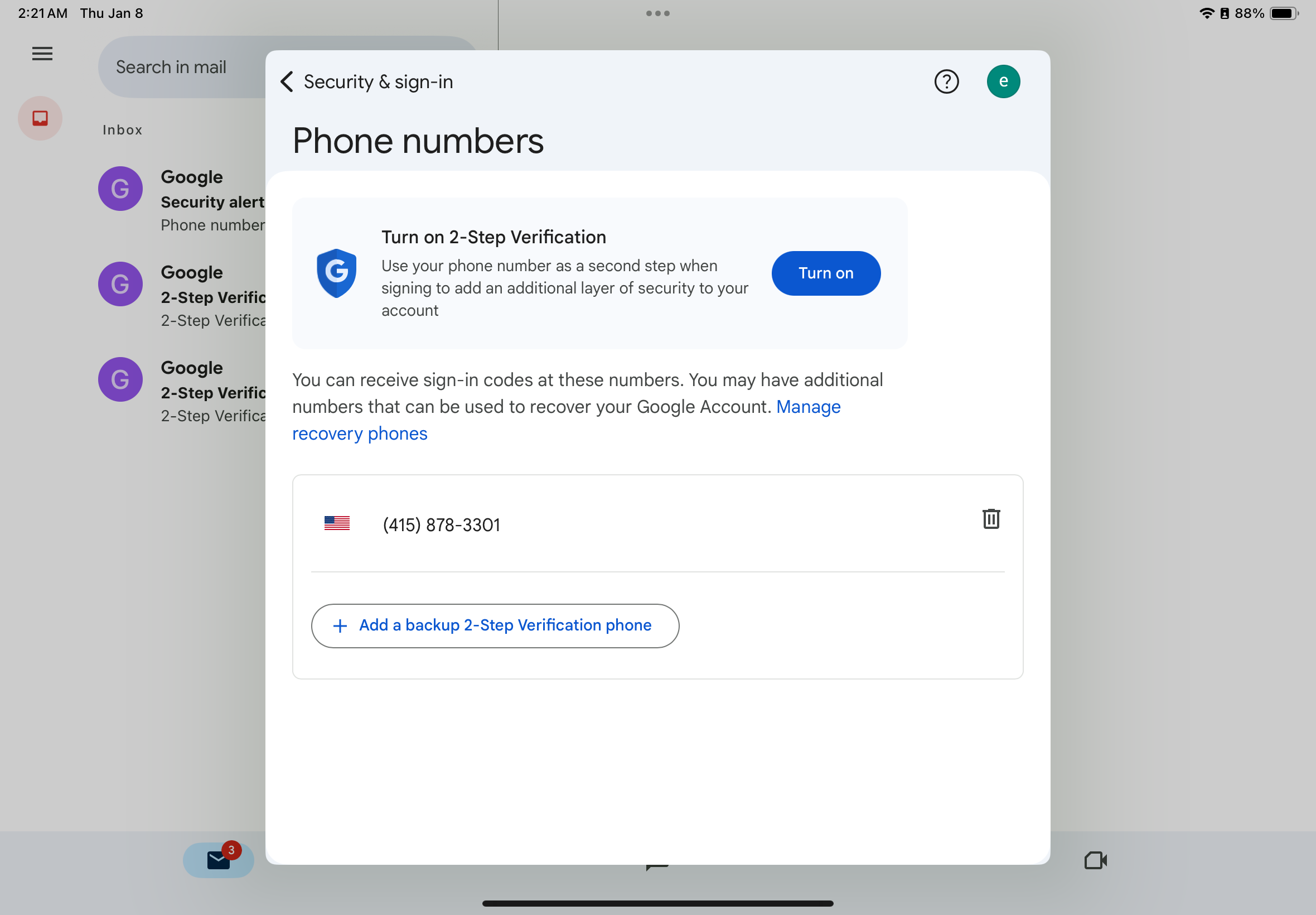
Note: If you need to change or add another number later, tap Phone number in your 2SV settings and select + Add phone number.
Click the blue button Turn on to enable the 2SV for the phone number.
Step 5: Set Up Authenticator App
The Authenticator app is the best way to get codes if your device is offline or you have no cell service.
Note: You can follow this in another article, Enable 2-Step Verification with an Authenticator App for Google to download, install, and sign in to your Finni email to use the Authenticator.
Go back now to the 2SV selection options and choose Authenticator.
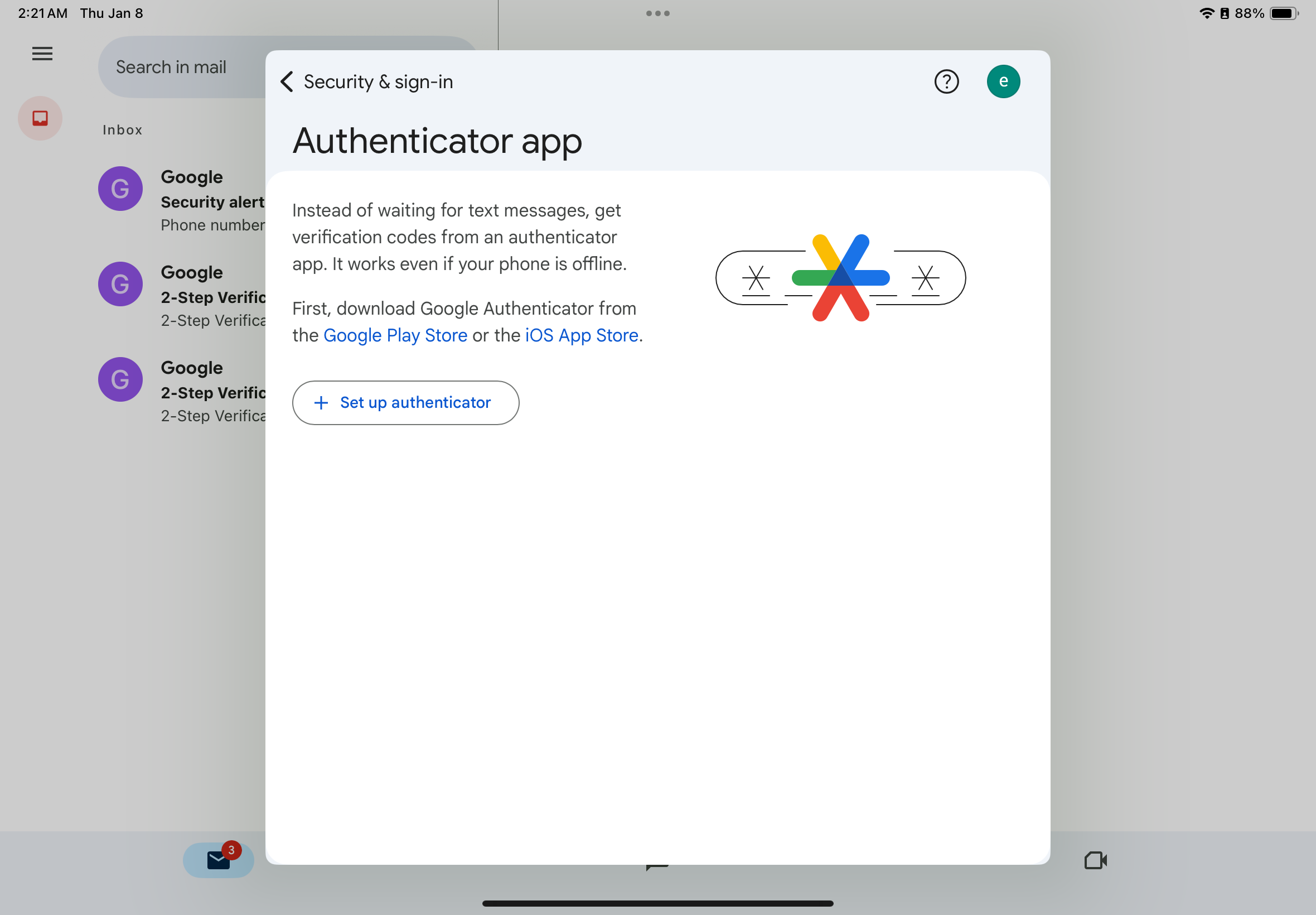
Note: Download the App if you haven't already, download "Google Authenticator" from the App Store and follow this article to sign in to your Finnihealth email.
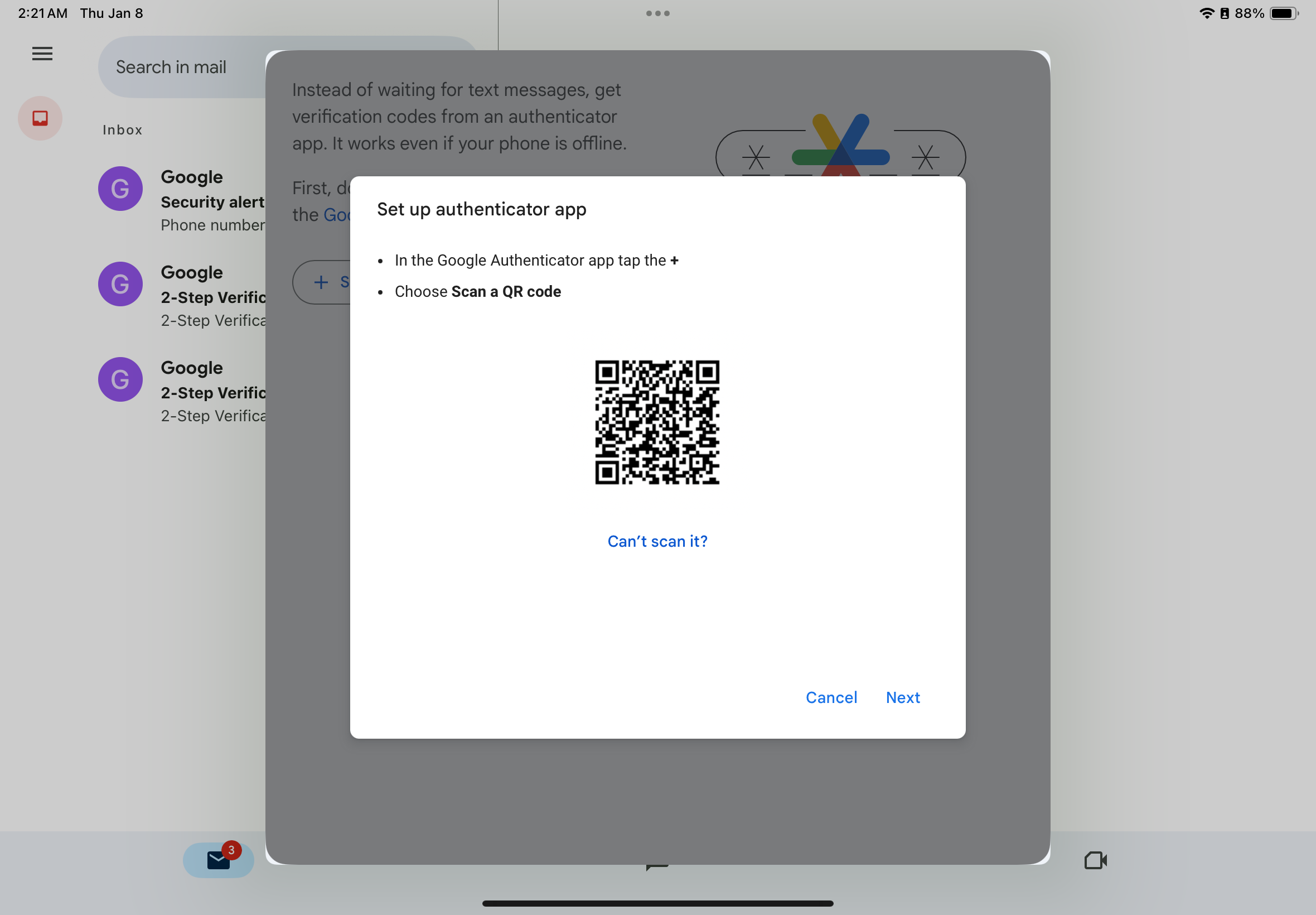
Scan the QR Code:
Tap the + icon Set Up authenticator, and a QR Code will appear.
Open the Google Authenticator app on your device.
Scan the code shown on your iPad screen.
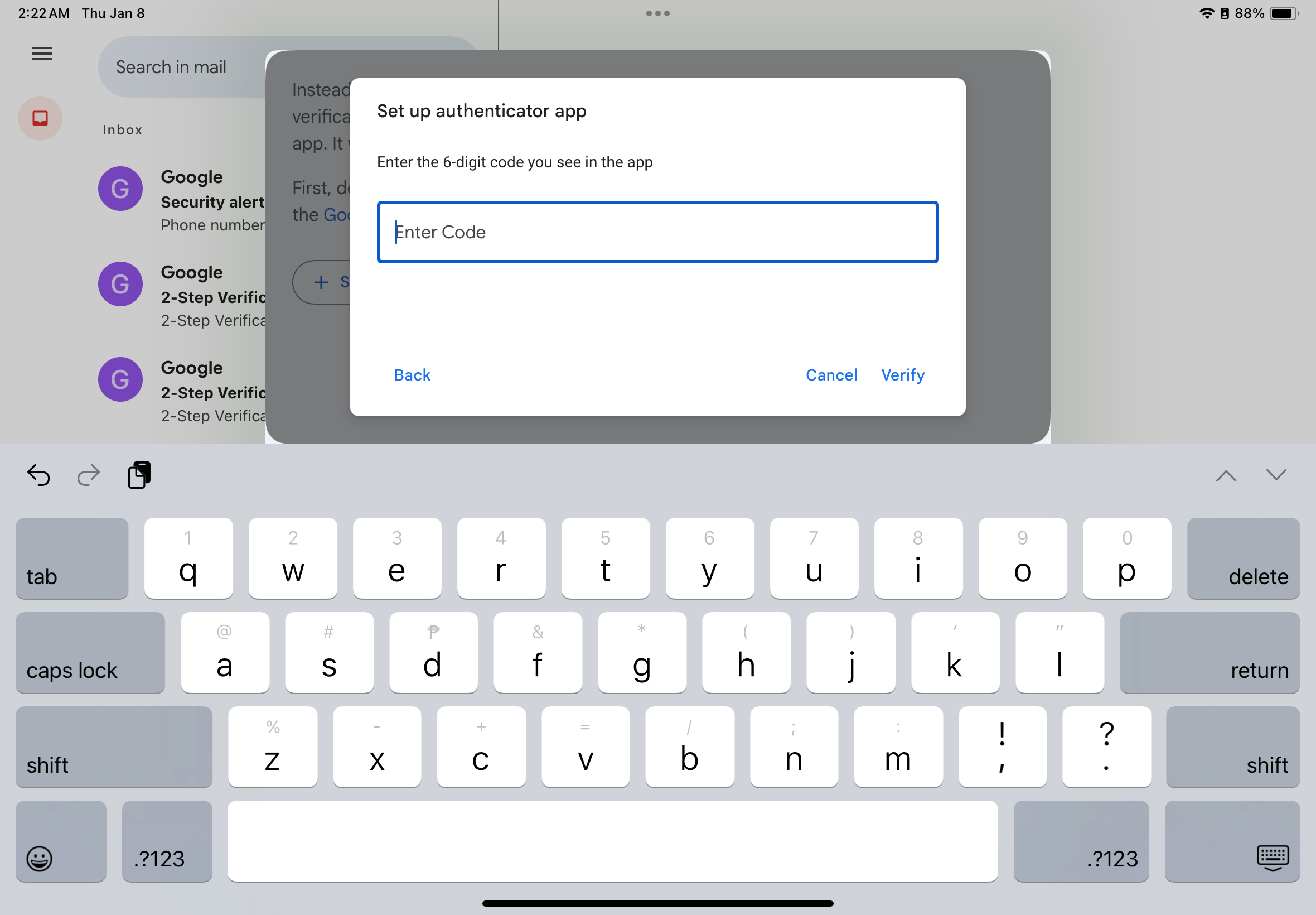
Verify: Enter the 6-digit code shown in the app into the "Enter Code" box on your iPad and tap Verify.
Step 6: Finalize and Turn On
Tap the blue Turn on 2-Step Verification button.
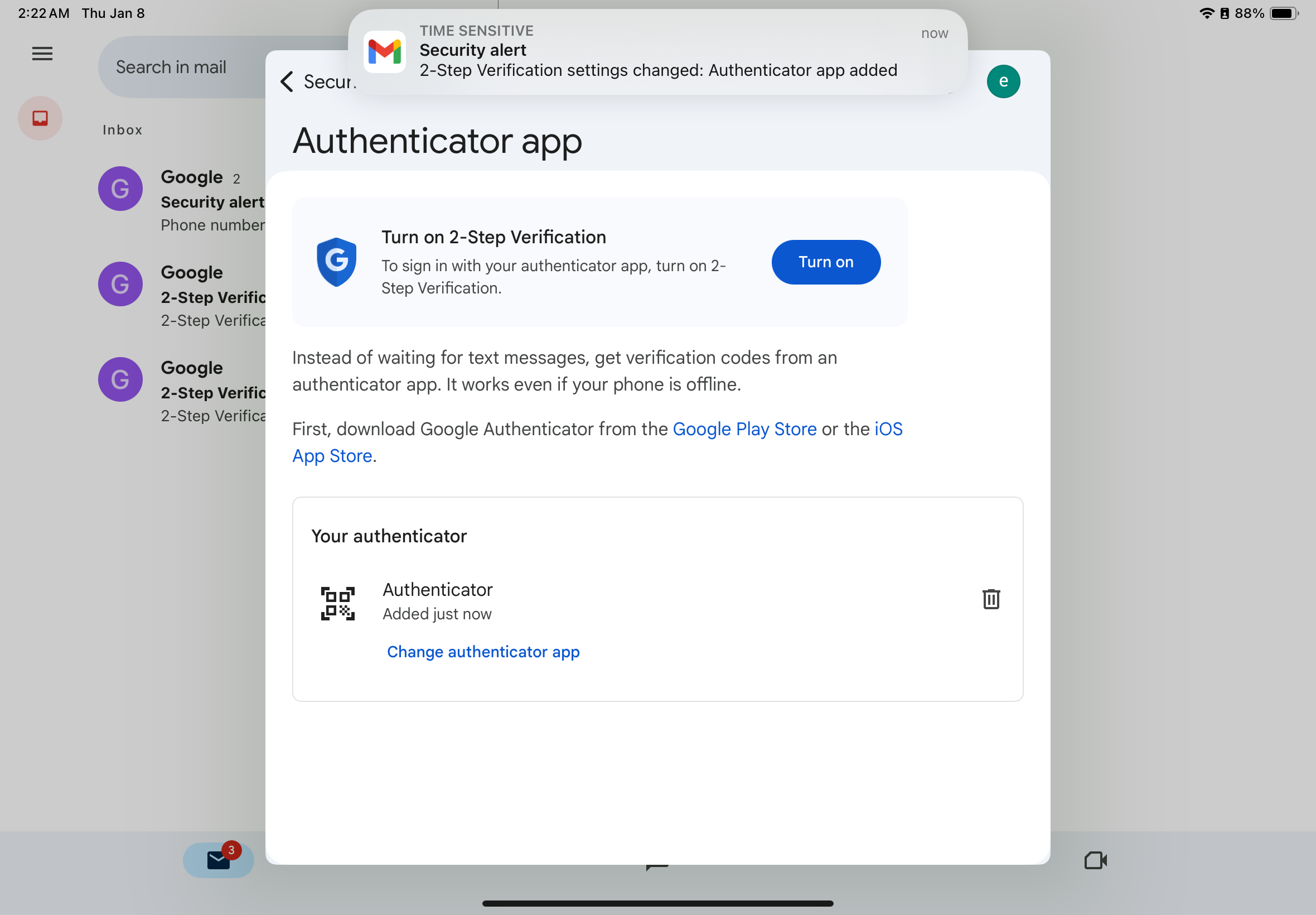
Go back and click the blue button Turn on 2-Step Verification
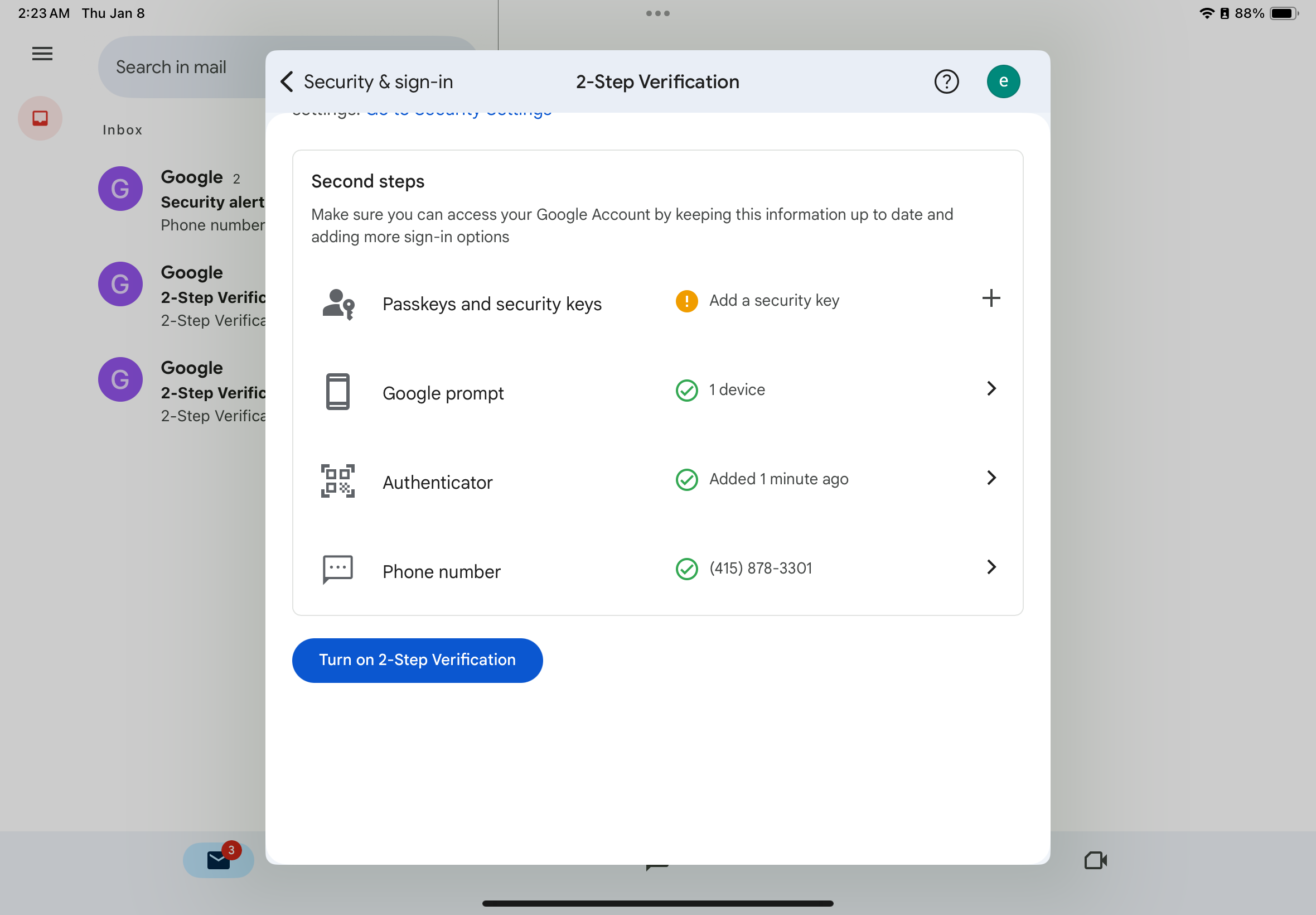
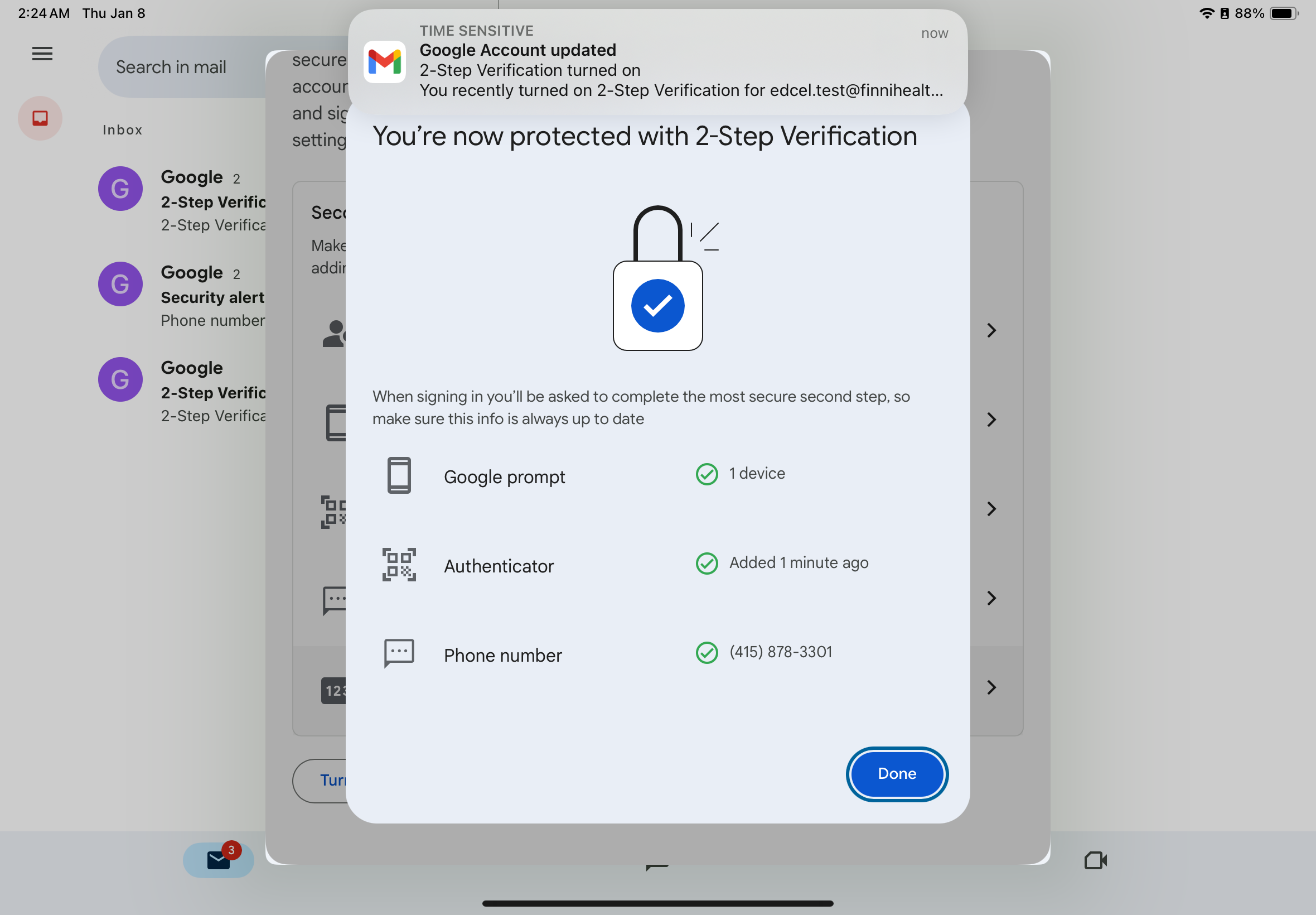
You will see a confirmation screen that says "You're now protected with 2-Step Verification" and tap Done.
For additional security, you can also follow the steps below:
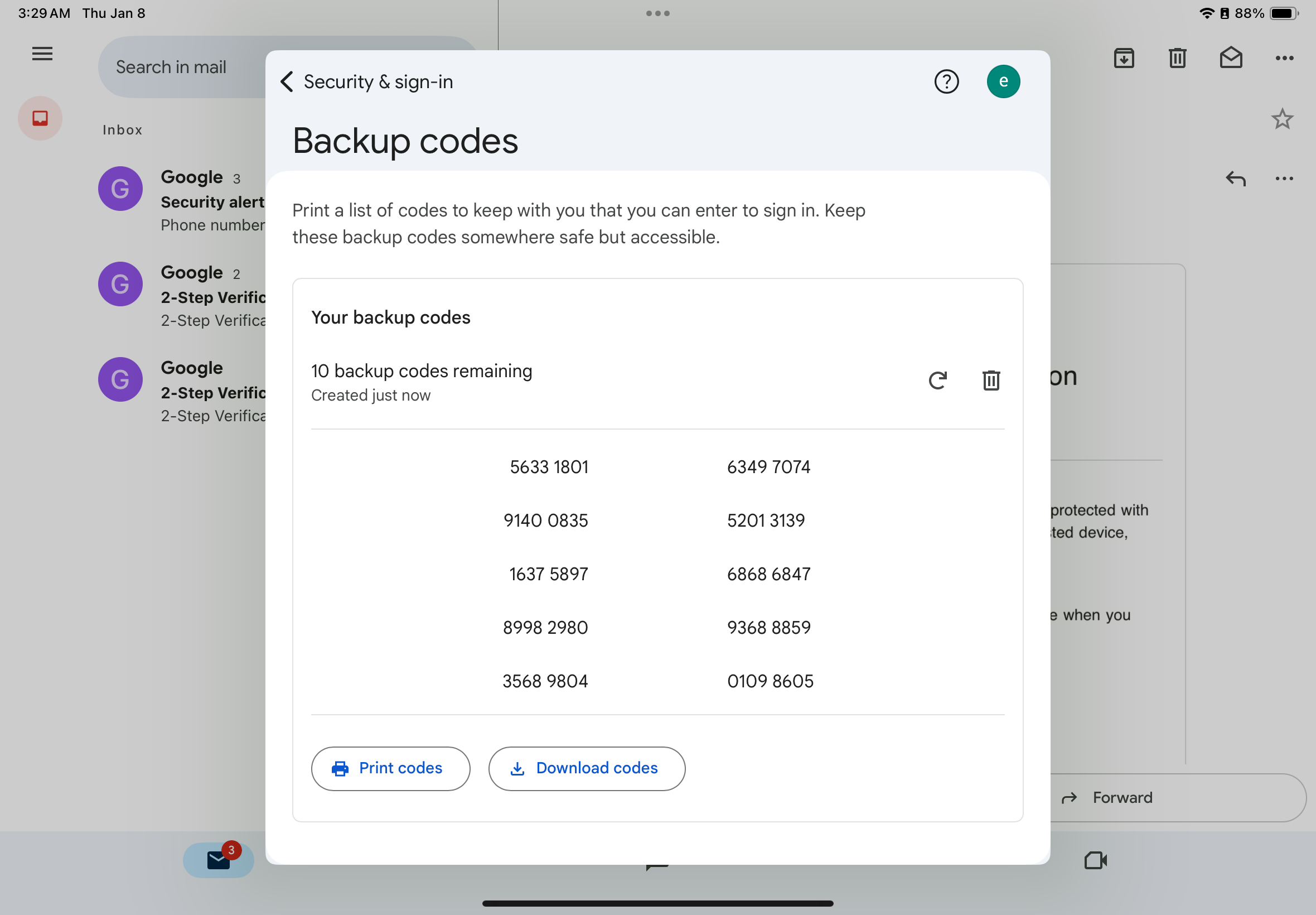
Download Backup Codes
Backup codes are one-time-use codes to keep in a safe place.
Under the "2-Step Verification" menu, find Backup codes and tap Continue.
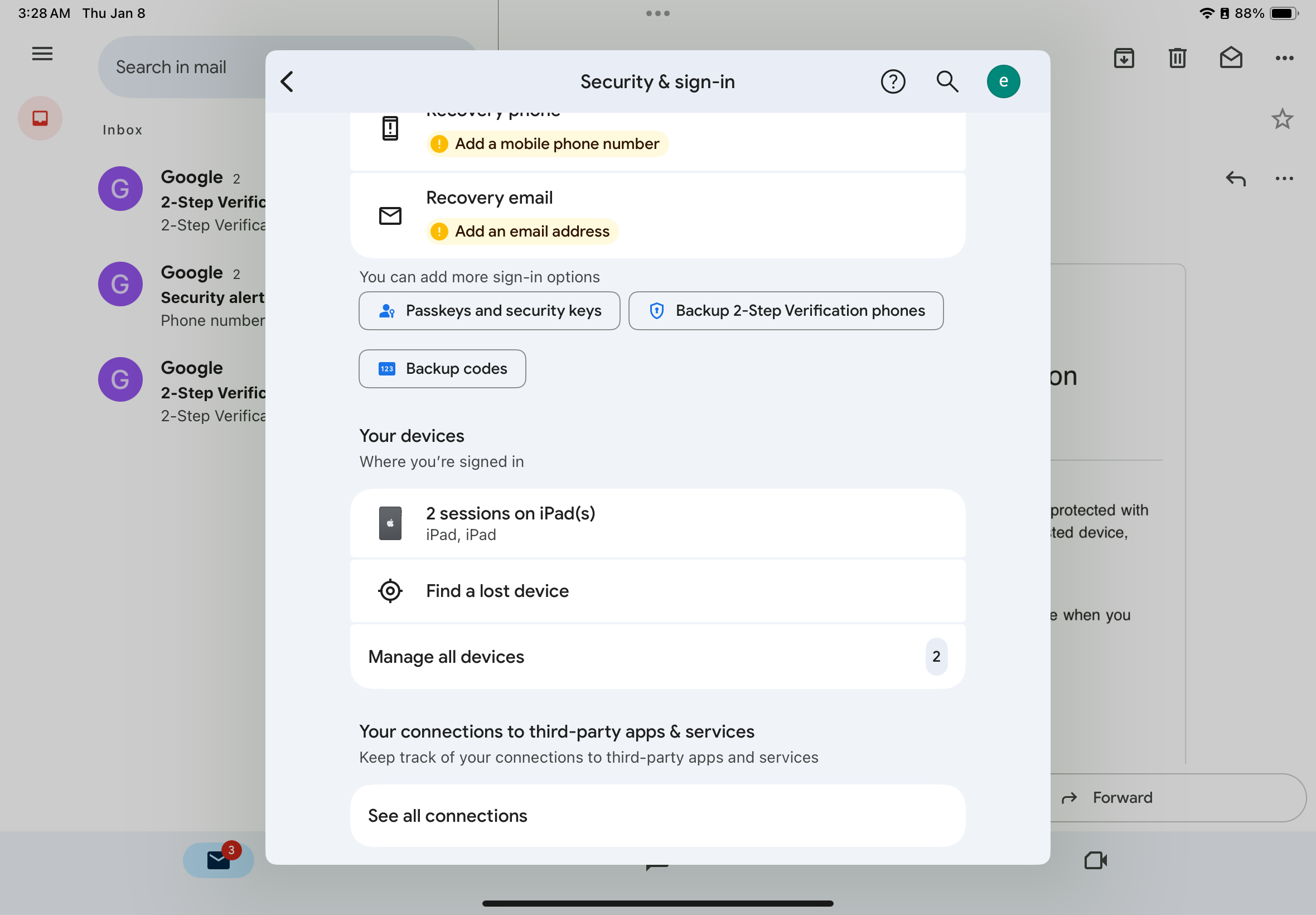
Tap Get Backup codes.
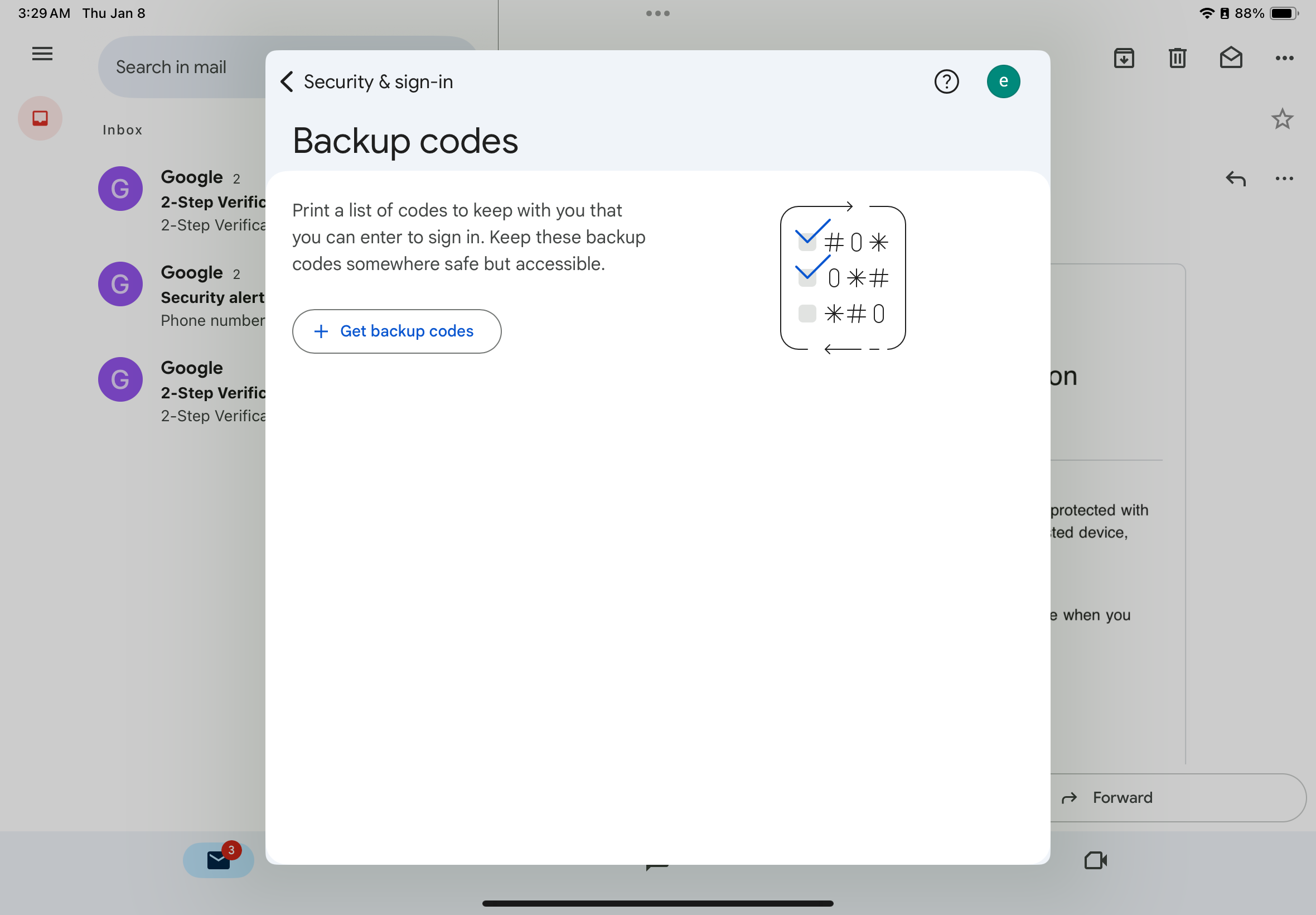
Tap Download Codes or Print.
Tip: Do not share these with anyone. Google will only ever ask for them at sign-in.
If you need further assistance, our team is happy to help with setup or answer any questions:
Slack: @support
Email: support@finnihealth.com
For additional guidance, you can also refer to Google’s 2-Step Verification support site.