Orbit Video Streaming
Last updated: October 27, 2025
Note: This feature is in Beta Testing - it is only available to a limited number of POs as we prepare for rollout. If you are interested in having your clinic added to the beta group, please reach out via your channel.
This has a tentative release date to all providers of: TBD, please stay tuned for more updates
Orbit supports streaming your sessions -- this ensures automatic recording of your sessions, and playback to watch these recordings back.
Setup
To access:
Open an active session
Scroll to the bottom of the active session list
You will see an item called "Record session video"
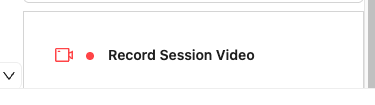
Clicking on that will open the prompt to let you join the room to start streaming your video
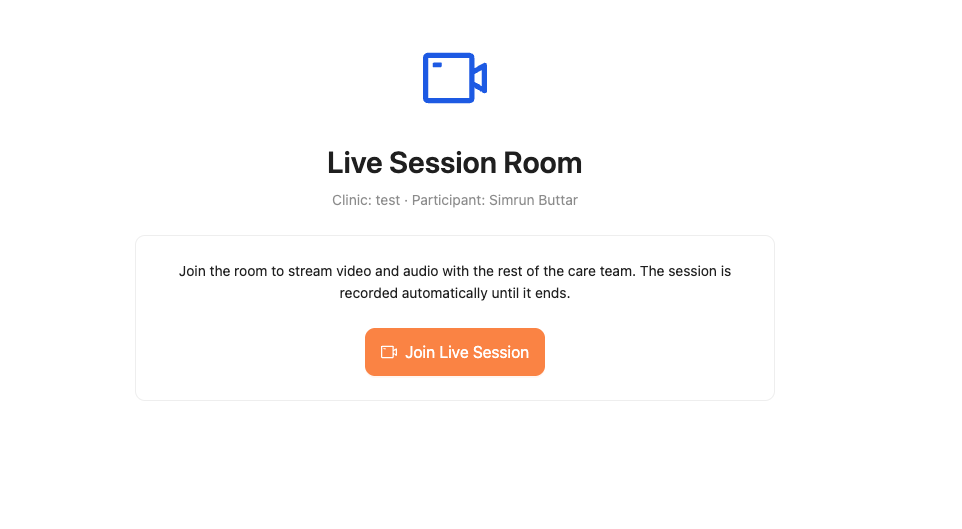
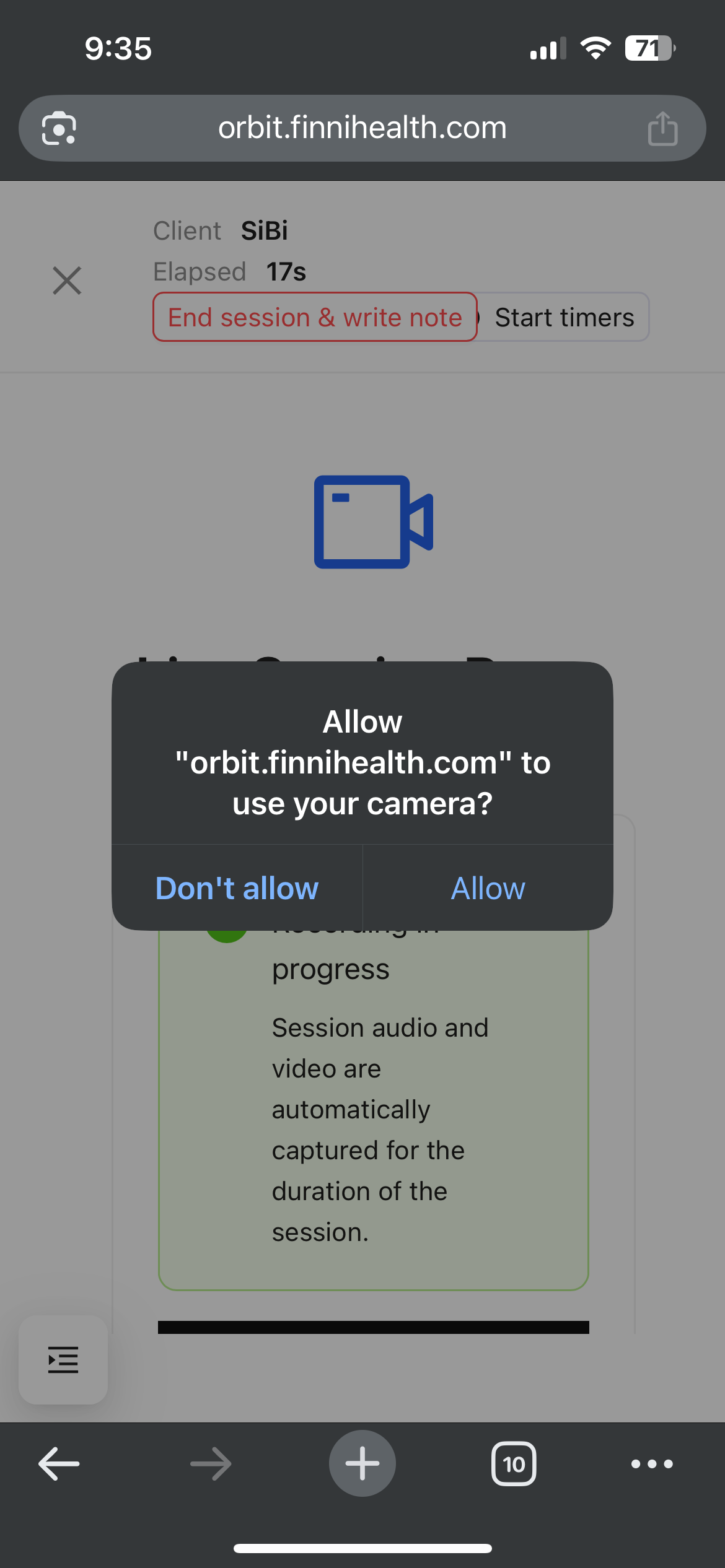
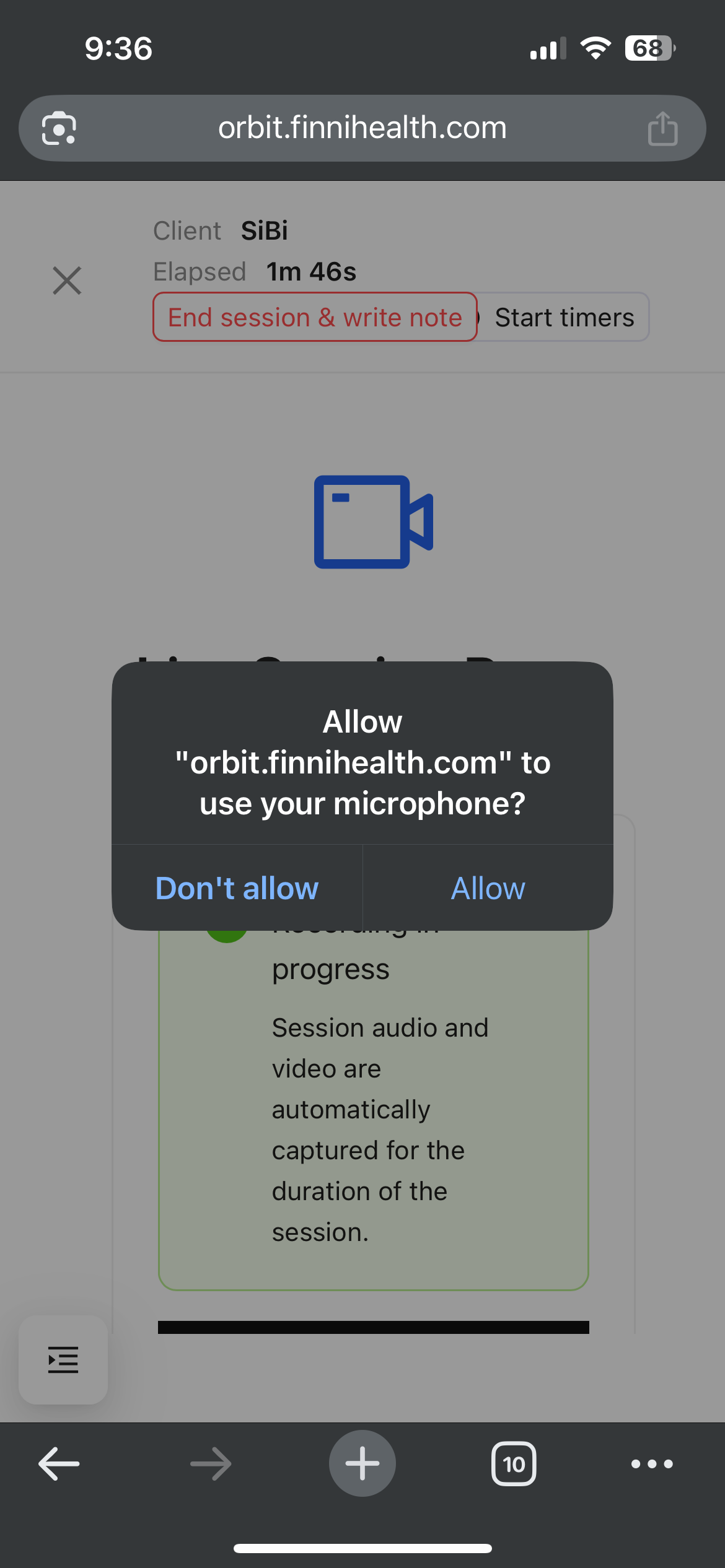
Please make sure that you give permissions for your microphone and camera -- else we won't be able to access it for streaming!
On mobile: You should see popup options that look like this when giving access --
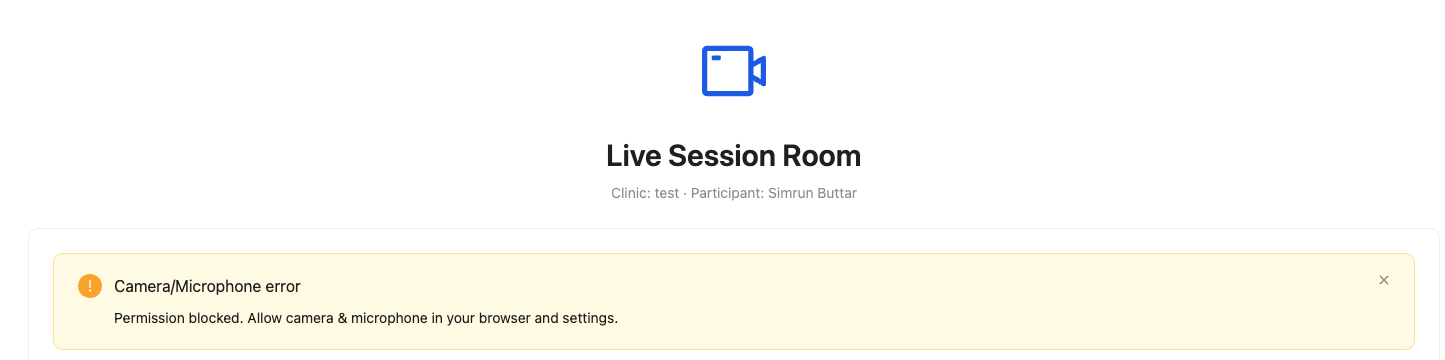
If there is a permissions issue, you will see a warning appear above the video streaming:
Streaming
Once you join the session, you will automatically begin streaming! You can continue to navigate around Orbit and take data, and recording will continue to happen in the background
If you leave the active session, or leave Orbit, the recording will pause!
It will still be saved, and still uploaded to your client video's, but it would not appear as one continuous recording until you join the live room again
When finished, you can "leave the room" to stop the recording -- the red leave button on the bottom right of the video streaming box -- or if it's time for the session to end, you can press end session directly which will also stop the recording
Accessing Videos
You will continue to access videos the same way as you would previously, with clicking on the client's page, going to "Videos" and you should see all your uploaded videos and information populate there