How to Sign in with Rippling Mobile
Last updated: February 6, 2026
Rippling is your all-in-one portal for HR, IT, and Finance. This guide will walk you through installing the app and accessing your account securely.
1. How to Install the Rippling App
The Rippling app is available for both iOS and Android devices.
For iOS (iPhone/iPad):
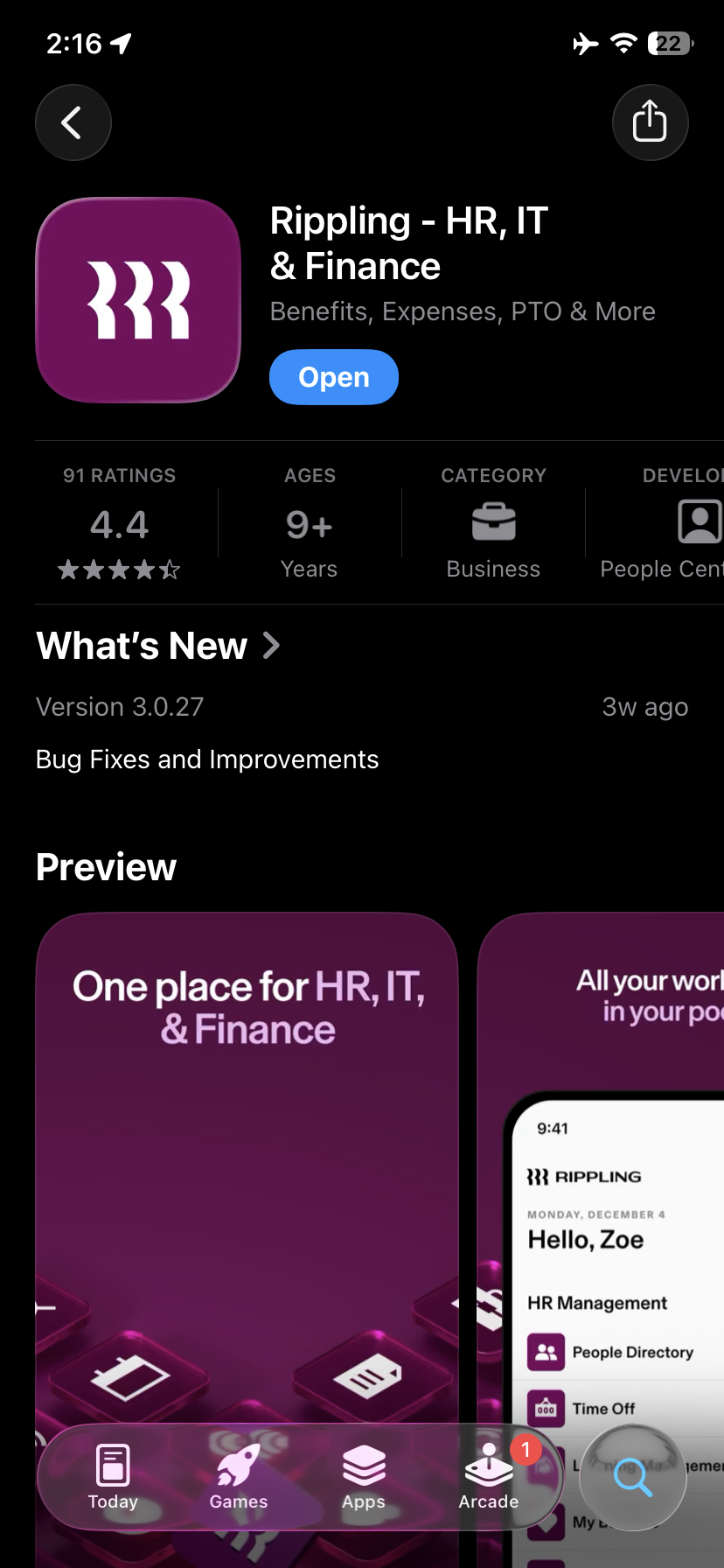
Open the App Store.
Search for "Rippling".
Locate the app titled Rippling - HR, IT & Finance.
Tap Get or the Cloud icon to download and install.
2. Signing In with Your Email and Password
Once the app is installed, follow these steps to log in:
Open the App: Tap the Rippling icon (the three wavy lines) on your home screen.
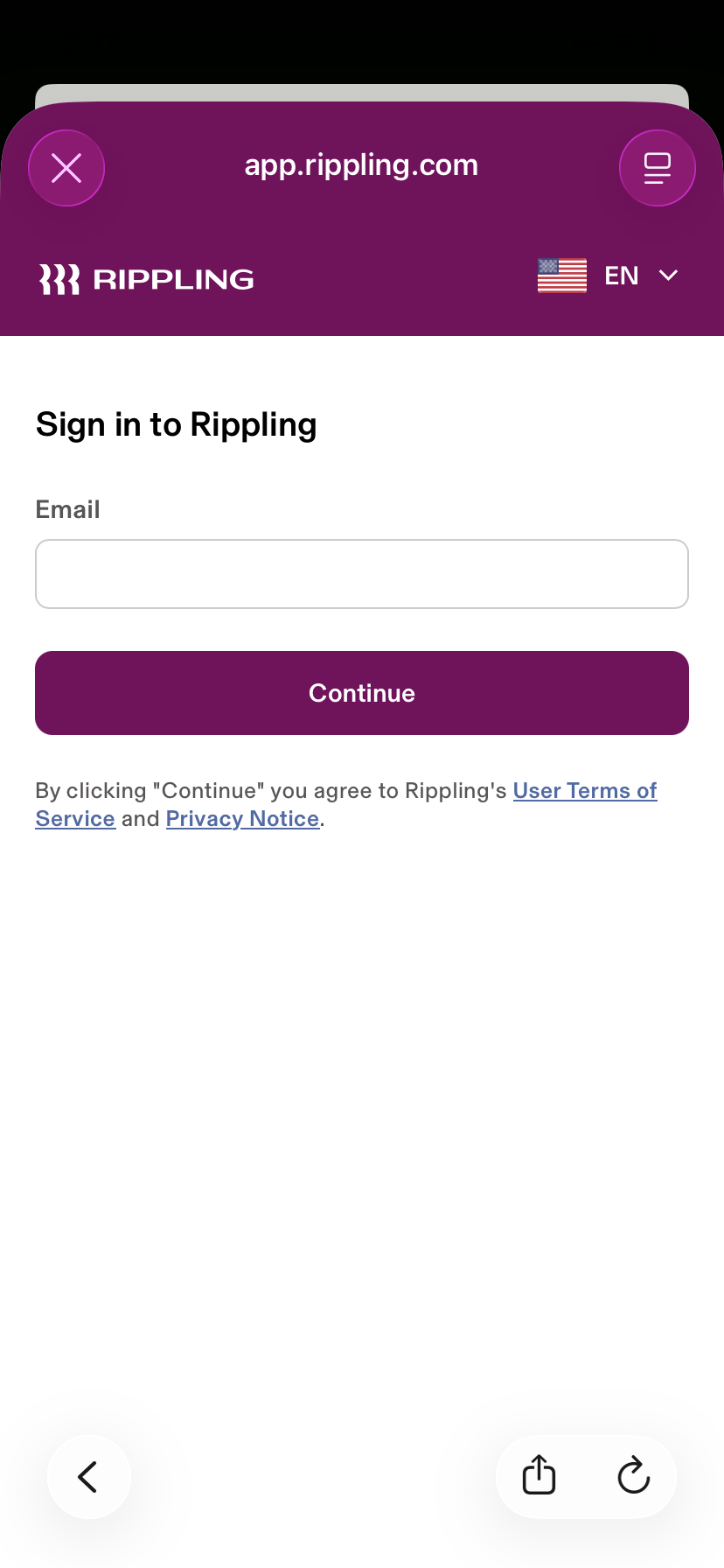
Enter Email: On the sign-in screen, enter your personal email address (the one used during your onboarding) and tap Continue.
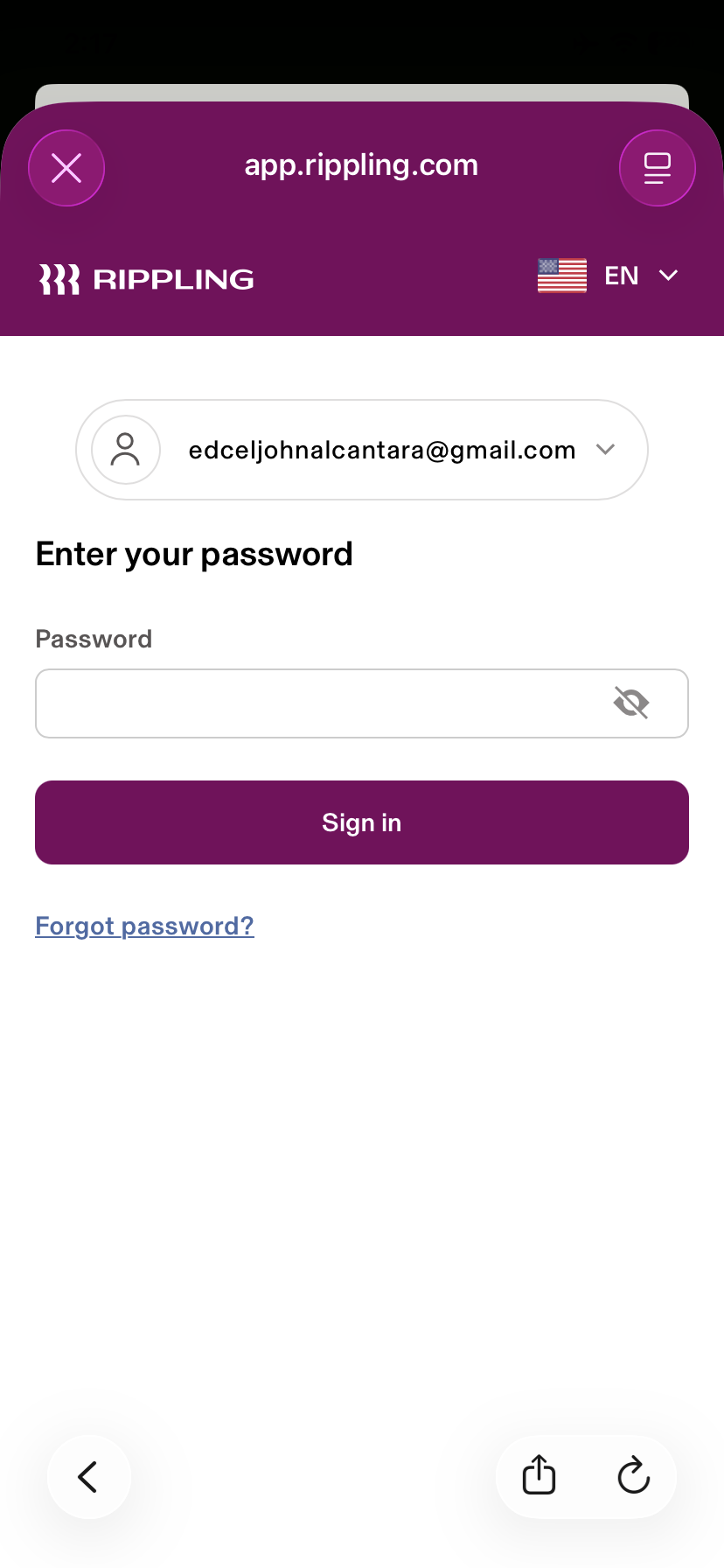
Enter Password: Type in your password.
Security Verification (if prompted): If your company has Two-Factor Authentication (2FA) enabled, enter the code sent to your mobile device or generated by your authenticator app.
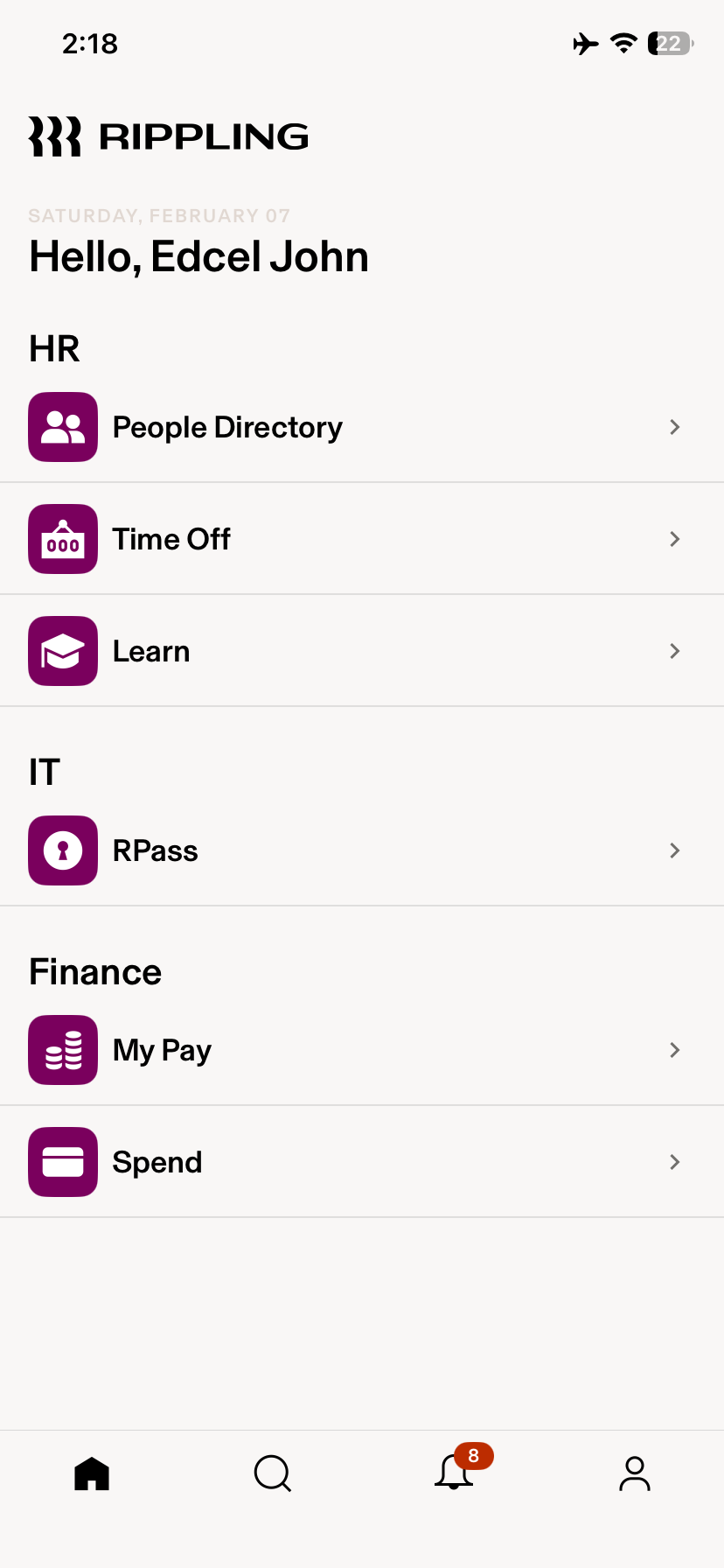
Access Dashboard: You will then be directed to your home screen where you can view your People Directory, Time Off, and Paystubs.
Forgot Your Password?
If you can't remember your password, you can reset it directly from the app:
On the password entry screen, tap the Forgot password? link located just below the "Sign in" button.
Confirm Email: Ensure your email address is correct and tap Reset Password.
Check Your Inbox: Rippling will send a password reset link to your personal email.
Create New Password: Click the link in the email and follow the prompts to create a new, secure password.
Return to App: Once reset, return to the Rippling app and log in with your new credentials.
Note: You can click this link and proceed to step 2 on how to reset your password.
If you need further assistance, our team is happy to help with setup or answer any questions:
Slack: @support
Email: support@finnihealth.com