How to Sign In on Rippling via Web Browser
Last updated: January 22, 2026
This article provides a step-by-step guide on how to access your Rippling account using a desktop or laptop web browser.
Prerequisites
Before you begin, ensure you have:
An active Rippling account.
Access to your registered email address.
Your 2FA (Two-Factor Authentication) device is handy (if enabled).
Steps to Sign In
1. Open a Supported Browser
Rippling works best on modern web browsers. We recommend using the latest versions of:
Google Chrome
Apple Safari
Mozilla Firefox or Microsoft Edge
2. Navigate to the Login Page
In the address bar at the top of your browser, type the following URL and press Enter:
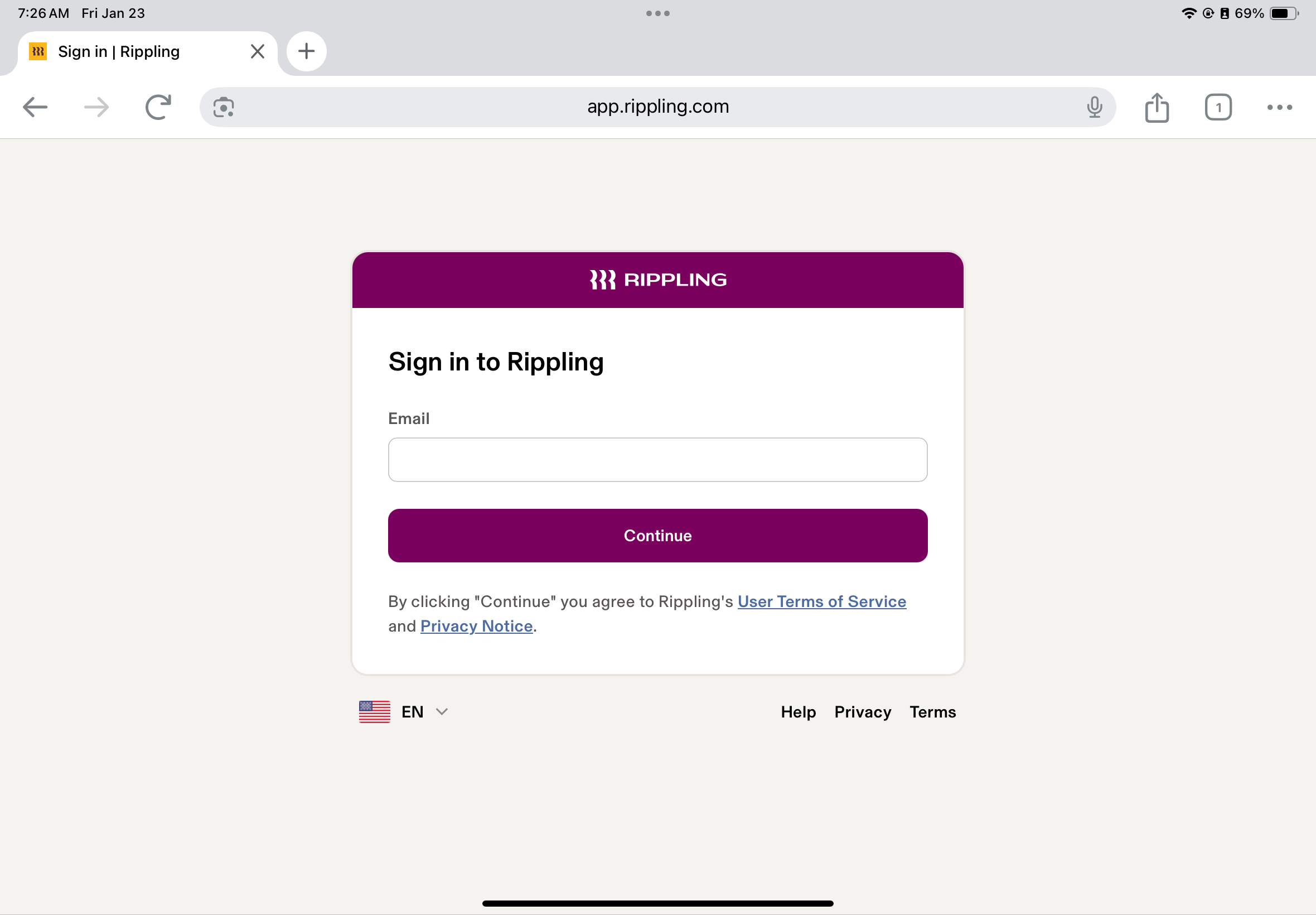
3. Enter Your Credentials
Once the login page loads, follow these prompts:
Email: Enter your work or personal email address associated with your Rippling account.
Confirm: Click the Confirm button to proceed.
Password: Enter your secure password in the provided field.
4. Complete Two-Factor Authentication (2FA)
If your company requires extra security, you may be prompted for a 2FA code.
Check your authenticator app (like Google Authenticator or Authy) or your SMS/Email for a verification code.
Enter the code on the Rippling sign-in screen to verify your identity
5. Access Your Dashboard
Once authenticated, you will be redirected to your Rippling Dashboard. You can now manage your payroll, benefits, apps, and profile directly from your browser.
Troubleshooting Tips
Forgot Password? Click the "Forgot Password" link on the sign-in page to receive a reset link via email.
Browser Cache: If the page isn't loading correctly, try clearing your browser cache or opening the link in an Incognito/Private window.
If you need further assistance, our team is happy to help with setup or answer any questions:
Slack: @support
Email: support@finnihealth.com