Managing Payments in the Parent Portal
Last updated: October 28, 2026
Managing your payments is now easier through the Parent Portal. You can add a payment card, set up AutoPay, make payments toward outstanding invoices, and view your payment history and receipts.
Important: Private-pay clients must have a saved payment method and complete AutoPay consent before booking an appointment.
Add a Payment Card
To add a payment card, you’ll need to use the web browser version of the Parent Portal:
Once logged in, you can add your debit or credit card and choose whether to use it as your AutoPay payment method.
Please note: Payment cards must currently be added through the web browser version of the Parent Portal. This option is not currently available in the Parent Portal mobile app.
Setting up AutoPay
Insurance Clients:
You can choose to set a payment card as your AutoPay method. This allows future payments to be processed automatically using the card you have selected.
Private-Pay Clients:
Before booking a private-pay appointment, the following requirements must be met:
Payment Method Required: A saved payment method is required before booking a private-pay appointment.

AutoPay Consent Required: AutoPay consent is required before booking a private-pay appointment. Select 'use for autopay' to complete the consent form.

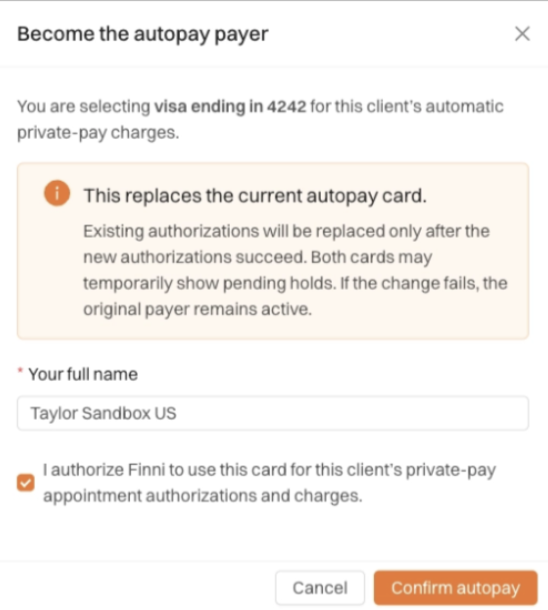
When you book the appointment, a billing hold will be placed on the default payment method.
If the hold is approved, the appointment will be confirmed.
If the hold is still unsuccessful 24 hours before the appointment, the appointment will be canceled.
Multiple Guardians
If multiple guardians are connected to the same child, each guardian can add and use their own payment method.
Payment information is kept separate between guardians, so one guardian will not see another guardian’s full card information.
Multiple Children
If you have multiple children connected to your Parent Portal account, invoices and payment information are managed separately for each child.
This helps ensure that payments are applied to the correct child and invoice.
Make a Payment
Once a payment method has been added, you can use the Parent Portal to:
Make a full payment toward an outstanding invoice.
Make a partial payment toward an outstanding balance.
View the remaining balance on an invoice.
View your payment history and receipts.
Please reach out to Care@finnihealth.com if you are running into any issues.