Troubleshooting iPad Update and App Installation Issues
Last updated: January 28, 2026
If your iPad is refusing to update its software (iPadOS) or won't allow you to download new apps, it usually boils down to insufficient space.
Follow this guide to identify the root cause and get your device back up to speed
Step 1: Identify Your iPad Model
Before diving into settings, we need to know exactly which iPad you have. Some older models simply do not support the latest iPadOS versions.
Action: Locate your Serial Number on the back of the device or in your settings.
Why? This number tells us the "Generation" of your iPad, which determines if it has reached its end-of-life for software support.
Step 2: Check Available Storage
If your model is compatible but still won't update or install apps, you likely don't have enough "breathing room" on your iPad.
How to verify your storage:
Open the Settings app.
Tap General.
Tap iPad Storage.
Wait a few seconds for the graph to load. This will show you how much space is used and what is taking it up (Photos, Apps, System Data, etc.).
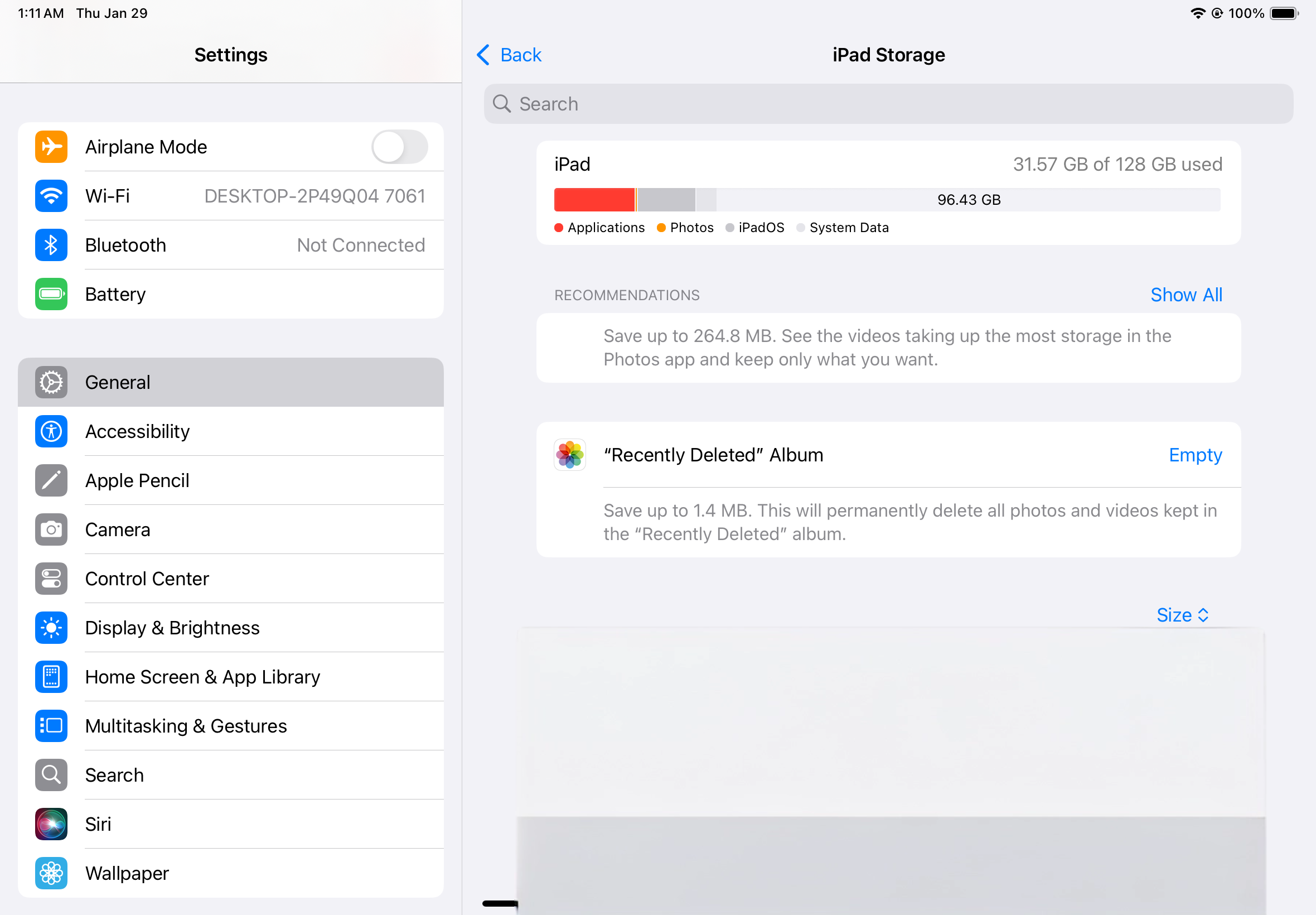
Step 3: Capacity Check & Resolution
The total capacity of your iPad significantly impacts how we handle the fix.
Total Capacity | Status | Recommended Action |
128GB or higher | Likely plenty of room | Delete large videos or unused games, then try the update again. |
64GB | Moderate | Offload unused apps to free up the 5-10GB required for a system update. |
32GB | Critical | Please reach out to support for further assistance. |
Note: On 32GB models, the System Data and iPadOS software take up a large portion of the storage, often leaving very little room for updates to "unpack" and install.
If you need further assistance, our team is happy to help with setup or answer any questions:
Slack: @support
Email: support@finnihealth.com