Finni Messenger — For Guardians
Last updated: October 28, 2026
Finni Messenger gives guardians a convenient way to communicate directly with their child’s care team through the Parent Portal app. Guardians can also receive email notifications when new messages are sent to their child’s channel, so downloading the app is not required just to receive an email notification.
This guide explains how message notifications work, how to access Messenger through the Parent Portal app, and how to complete the required Caregiver Communication Policy attestation.
When Will Messenger Be Available?
Finni Messenger will become available once your child’s first billable appointment has been scheduled. Before your first appointment is scheduled, communication from your child’s practice may take place by phone or email, depending on your preferences and the practice’s communication preferences.
Message Notifications and Preferences
When your child’s care team sends you a message, you will receive a notification based on your notification settings.
If you haven’t set up SMS text notifications, or app notifications through the Parent Portal, you’ll receive an email the first time someone sends a message to your child’s account.
The email will let you know there’s a new message and provide options for choosing how you’d like to receive future notifications. You won’t need to download the Parent Portal app to receive message notifications by text. Simply select the SMS text option to receive notifications directly on your phone.
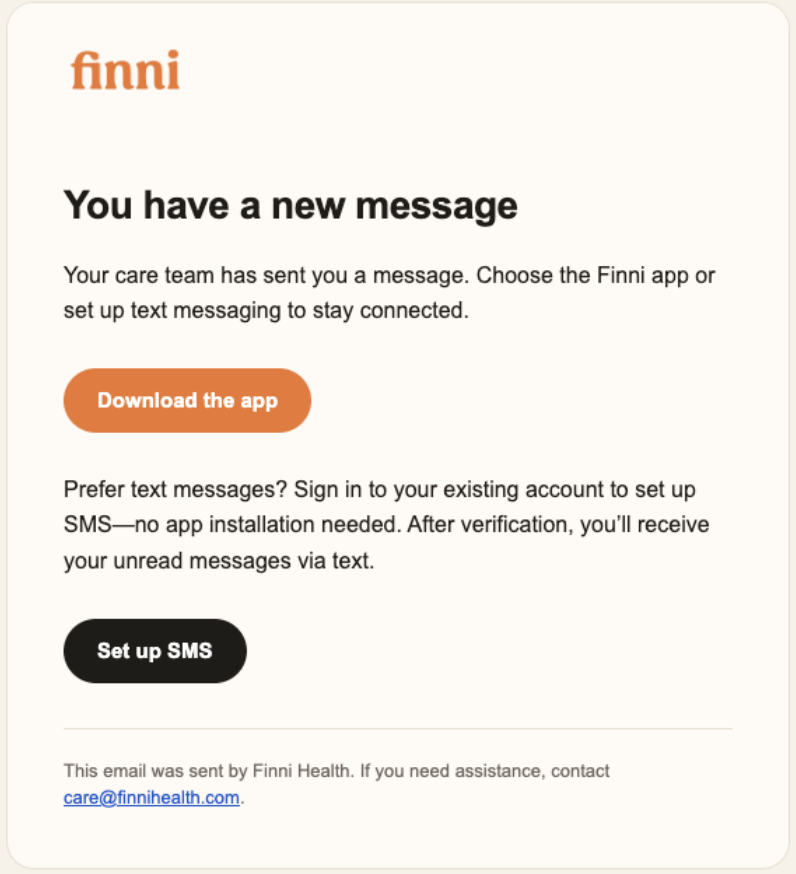
SMS Text Notifications Request
If you already have the Parent Portal app downloaded and notifications set up but would prefer to receive text message notifications, contact your child’s practice to request an SMS invitation. Once you receive the invitation, you can complete the setup to start receiving notifications by text.
App Push Notifications
If you use the Parent Portal app, you can enable push notifications on your device to receive alerts when new messages arrive. Make sure push notifications are enabled for the app in your device’s settings.
Access Messenger in the Parent Portal App
If you’d like to send and receive messages directly through the Parent Portal app, follow these steps:
Download the Finni Health Parent Portal App from your device’s app store. You will use the same login credentials you use for the Parent Portal website when you completed the intake form.
Select the Messages tab in the menu bar.
Follow the prompt to review and attest to the Caregiver Communication Policy before accessing Messenger.
Once you’ve completed the attestation and your child’s first billable appointment has been scheduled, you can access Messenger to send and receive messages and review previous conversations with your child’s care team.
How to Complete the Caregiver Communication Policy Attestation
Before using Messenger for the first time, you must review and attest to the Caregiver Communication Policy. You can find the attestation prompt in the Messages tab of the Parent Portal app.
To complete the attestation:
Open the Caregiver Communication Policy link.
Review the policy. You must open the link and read the policy before the attest option becomes available.
Select Attest.
Select Confirm and Continue to complete the attestation and proceed to the app.
Need Help?
Technical issues or Parent Portal assistance: Contact care@finnihealth.com for help accessing Messenger or troubleshooting issues.
SMS text message invitations: Contact your child’s practice to request an invitation to set up SMS text notifications.