Preparing your iPad for Return (Reset)
Last updated: January 30, 2026
Follow these steps to securely wipe your data and unlock the iPad for the next user. Note: You will need your Apple ID password and your iPad Screen Passcode to complete these steps.
Step 1: Turn off "Find My" (Stops Tracking)
Scenario A: You are signed in with a PERSONAL email
(e.g., @gmail.com, @icloud.com, @outlook.com) Action Required: You must manually turn off tracking to avoid locking the device permanently.
This is the most important step. If this isn't done, the iPad remains "locked" to your account even after a reset.
Open Settings.
Tap your name at the very top of the left-side menu.
Tap Find My.
Tap Find My iPad and toggle it OFF.
Enter your Apple ID Password when prompted and tap Turn Off.
Scenario B: You are signed in with your WORK email
(e.g., @finnihealth.com) Action Required: None for tracking.
On work-managed accounts, the "Find My" option is disabled or hidden by IT policy. You do not need to turn it off manually as it is managed by the organization. Proceed directly to Step 2.
Step 2: Sign out of your Apple Account
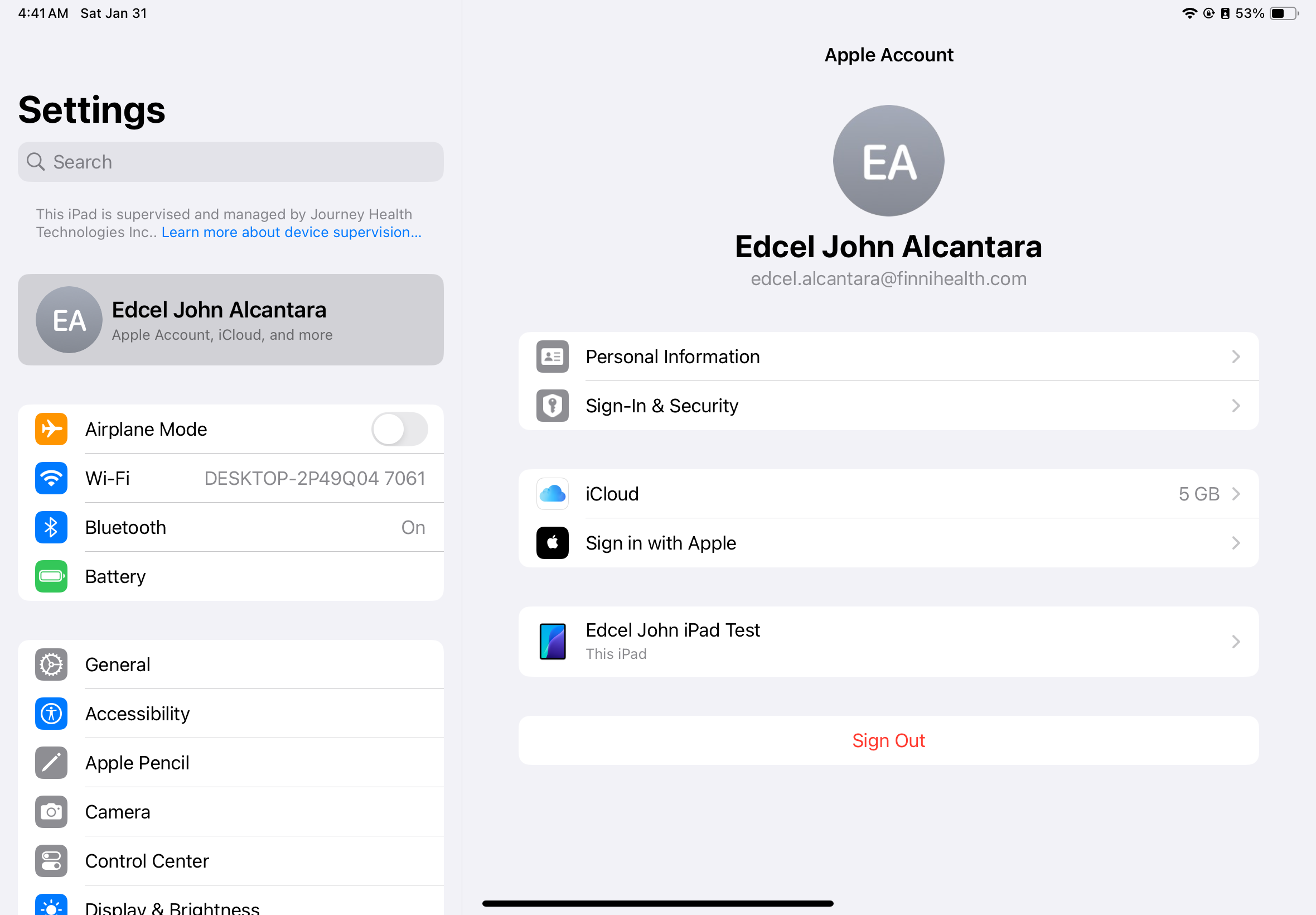
Go back to the main Settings screen and tap your name again.
Scroll all the way to the bottom and tap Sign Out.
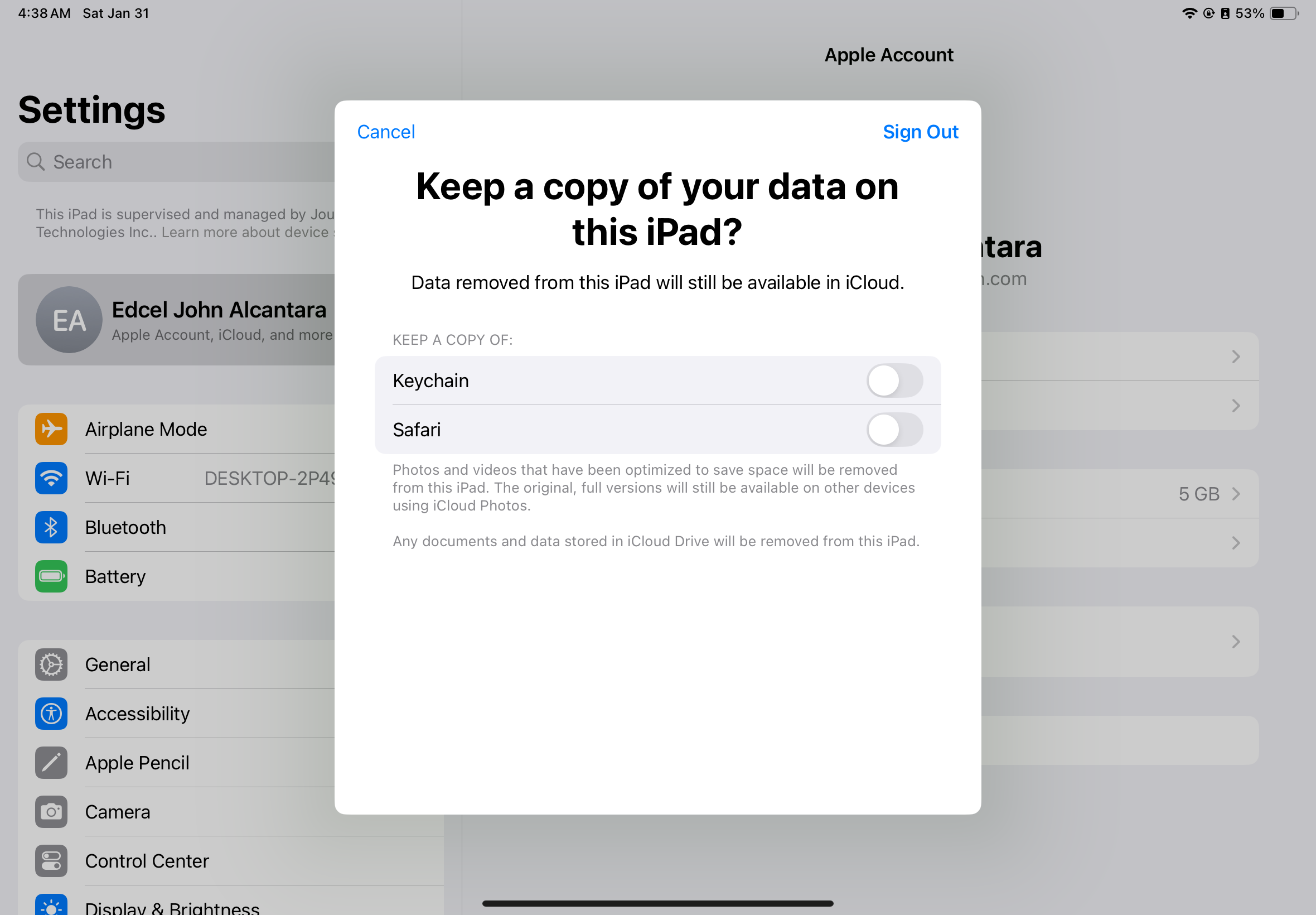
If asked if you want to keep a copy of your data on this iPad, leave all switches OFF (since you are returning the device).
Tap Sign Out in the top right corner, then tap Sign Out again to confirm.
Step 3: Erase All Content and Settings
This will securely delete all your apps, photos, and personal files.
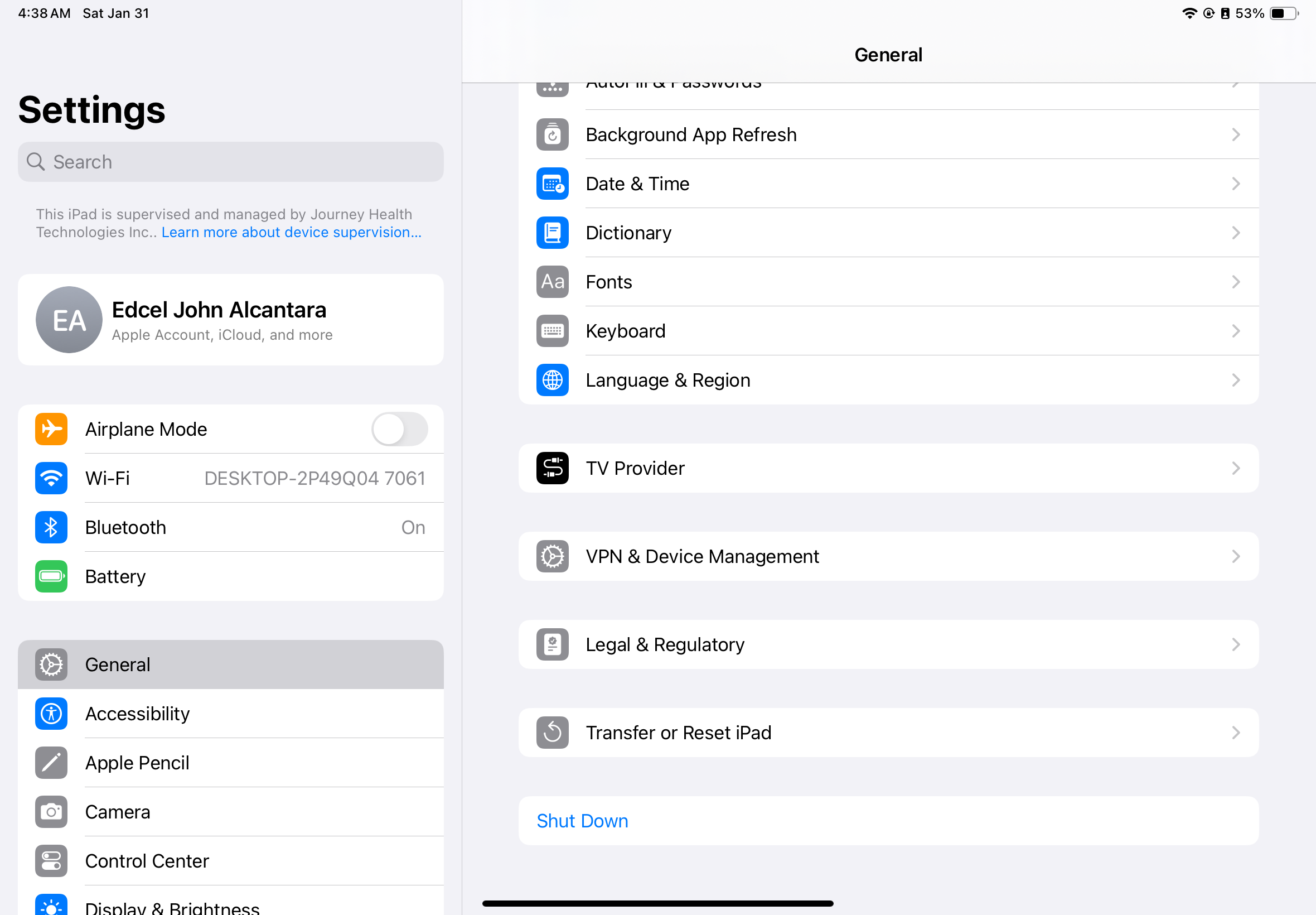
Go to Settings > General.
Scroll to the bottom and tap Transfer or Reset iPad.
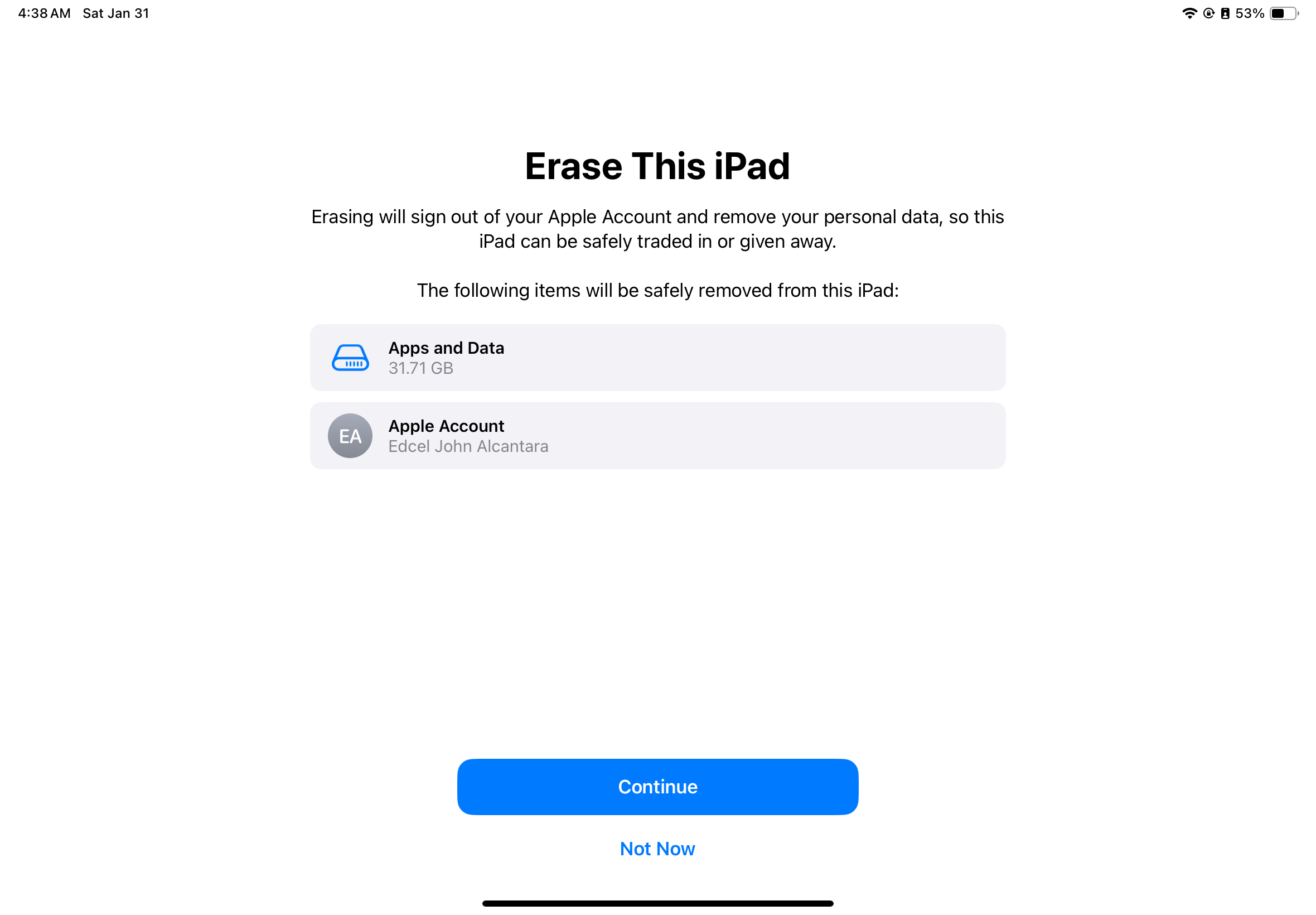
Tap Erase All Content and Settings.
Tap Continue.
Enter your iPad Screen Passcode (the numbers you use to unlock the screen).
The iPad will show a final confirmation. Tap Erase iPad.
Step 4: Final Check
The iPad will restart and eventually show a white "Hello" or "Hola" screen in many languages.
If you see the "Hello" screen, the process was successful.
You can now safely power off the device and return it to IT.
If you encounter any problems with the procedure above, please contact support@finnihealth.com