Adding Multiple Children in the Parent Portal
Last updated: May 5, 2026
This article explains how guardians can add and manage multiple children within a single Parent Portal account. This feature allows families with more than one child receiving services to access all profiles in one place.
Please note that guardians will need to add any additional children directly within their account. If a child was previously added using an email alias, please reach out to your clinic so they can coordinate with our product team to sync the accounts.
How to Add a Child (Parent Portal Web)
Log in to the web browser version of the Parent Portal
Open the profile menu or child selection screen
Select the kiddo's initials in the upper right corner
Select “Add child”
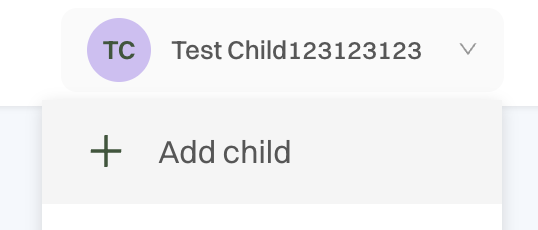
Enter the child’s basic information
Select 'Add Child'
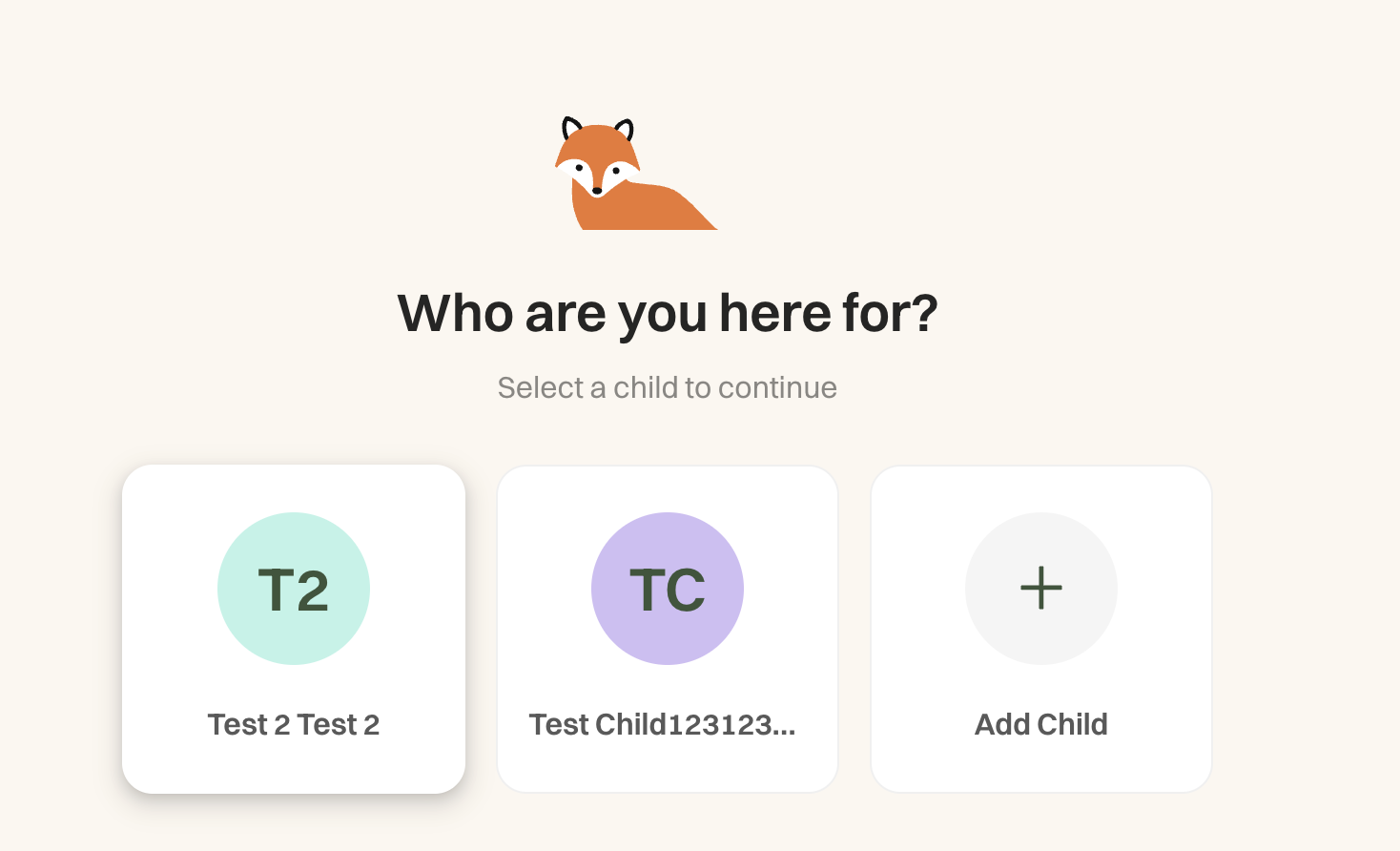
Please note: If you already have more than one child listed, you will see an option to add another child as soon as you log in:
What Happens After Adding a Child
A new child profile is automatically created
The intake process can continue for that child
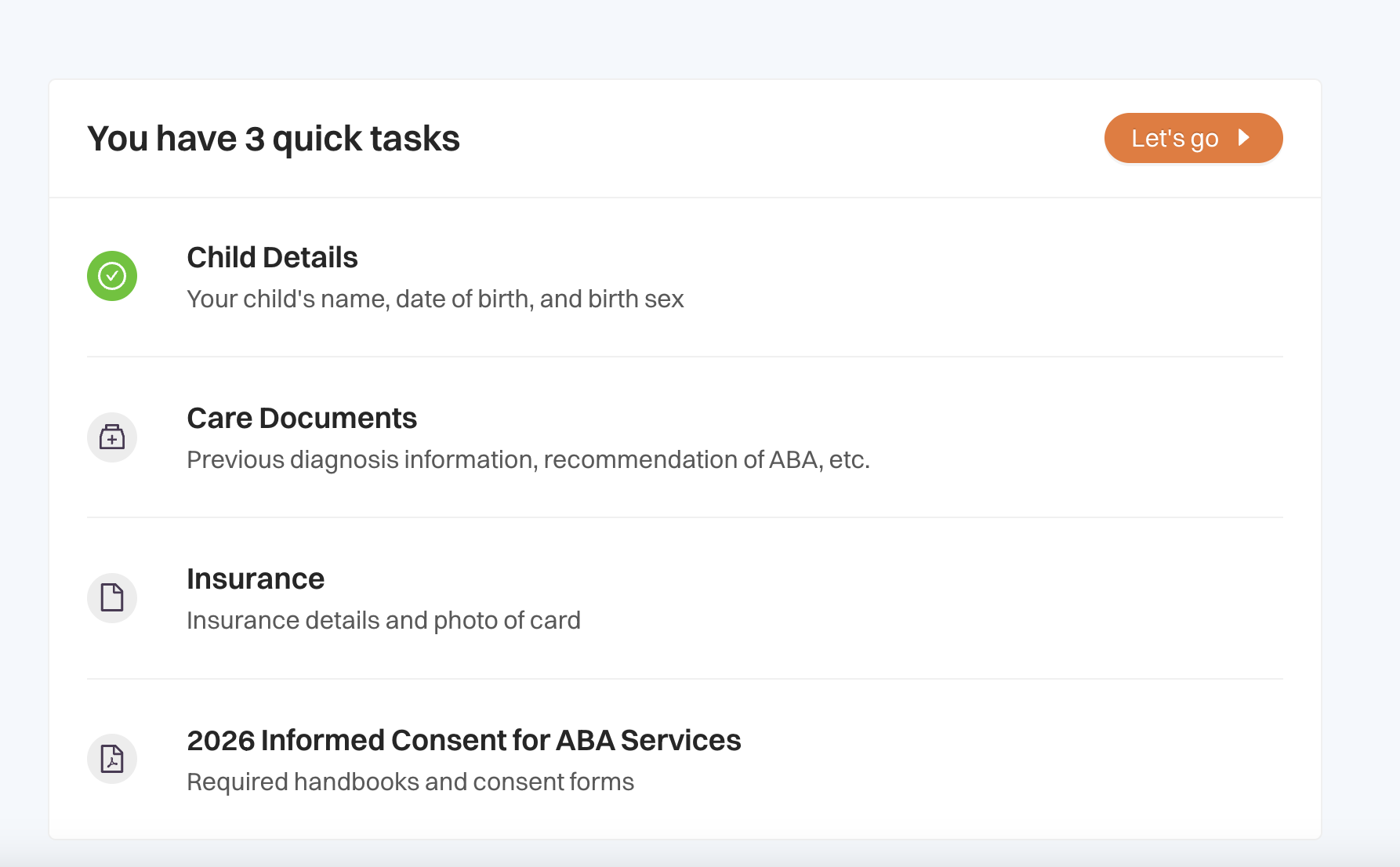
The additional child appears in the guardian’s child selection list within the Parent Portal, so they can easily switch between kiddos.
How to Switch Between Children
On Web:
Select a child at login, or
Use the profile menu at any time to switch children
On Mobile:
A child selection screen appears at login (if multiple children exist)
Use the side menu to switch between children at any time