Adding an Additional Guardian
Last updated: April 15, 2026
This article explains how to invite additional guardians (such as co-parents or caregivers) for a client within Mission Control. Adding guardians ensures shared access to the child’s Parent Portal and keeps all approved caregivers informed.
How to Add an Additional Guardian
Owners, admins, and analysts have access to generate a unique invite link to associate a client with multiple guardian accounts.
Open Mission Control
Navigate to the client’s profile
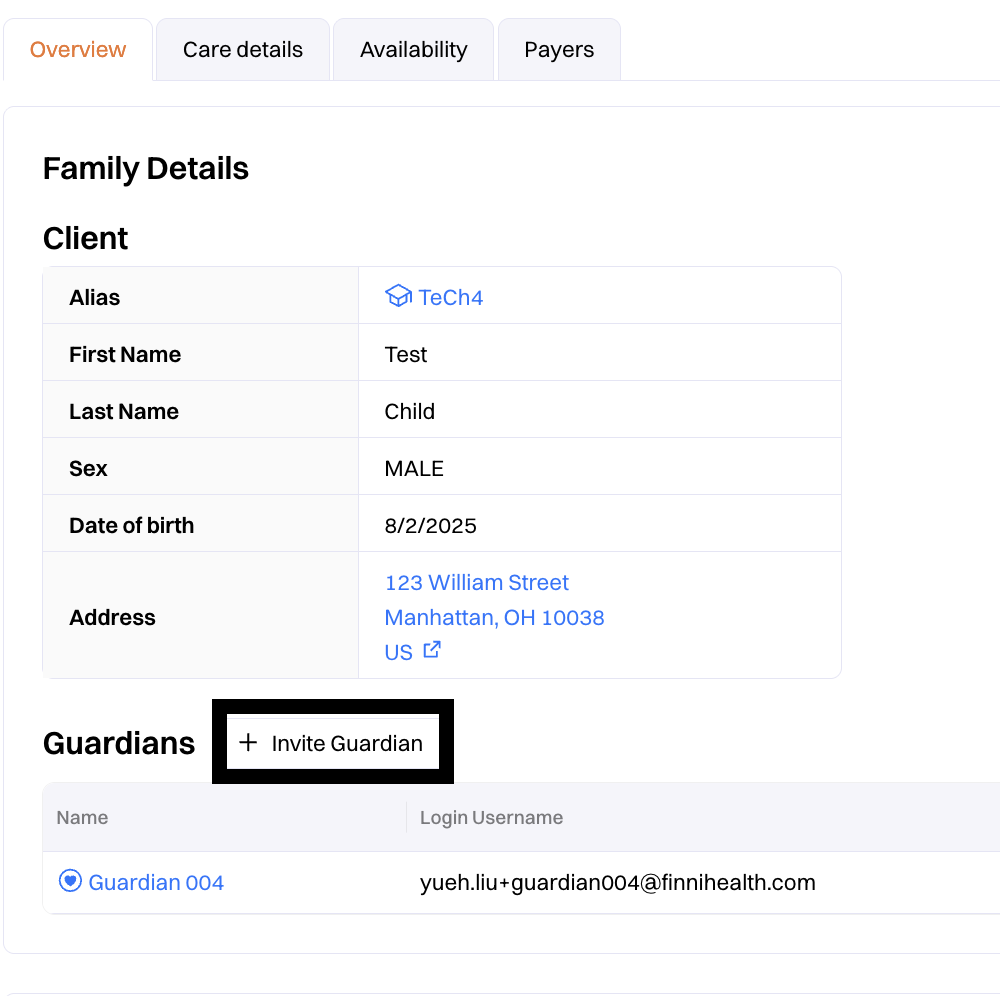
Scroll to the Guardian section
Click “Invite Guardian”
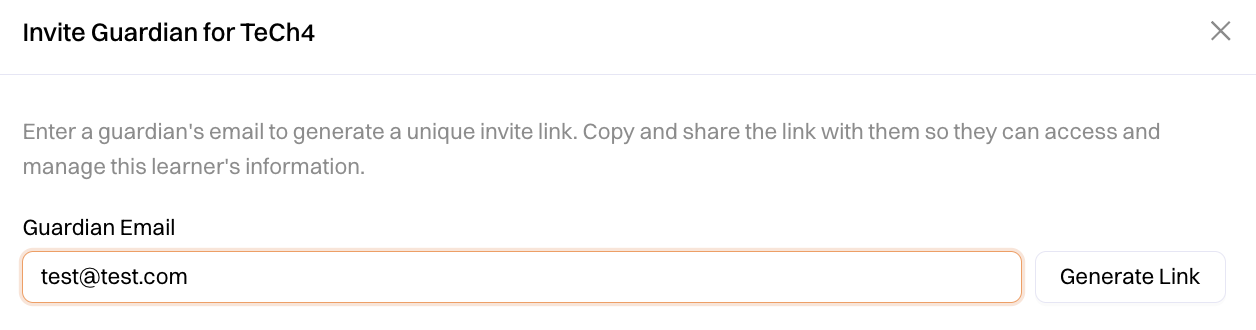
Enter the guardian’s email address
Generate link, and then copy and send the invite link to the additional guardian for them to complete the next steps.
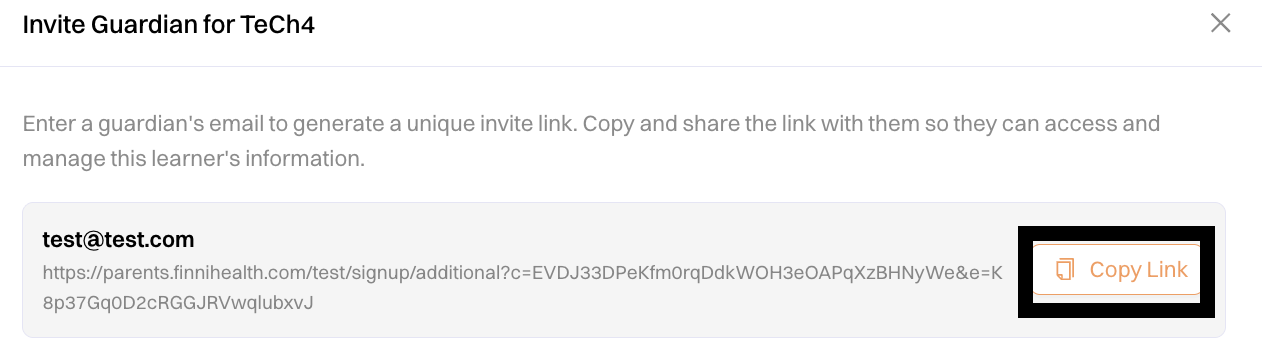
A unique invite link will be required for each client. Guardians will not automatically gain access to all kiddos associated with a primary parent account. This ensures access is granted only on a per-child basis for privacy and accuracy.
What Happens After Invitation
The guardian will open the invite link tied to their email address
They'll need to create an account
Once registered, they are automatically linked to the child’s profile
They gain immediate access to the Parent Portal
Important Notes
Only the first listed guardian receives signature requests from Mission Control
All linked guardians can still view and sign documents in the Parent Portal
All guardians receive:
Email reminders and updates
Push notifications (if using mobile app)
Mission Control displays all guardians linked to a client in the Family Profile section